Unleash Your PC's Power: A Killer Guide to Optimizing Dota 2 on Low-End PC
Author: Hawk Live LLC
Last updated:
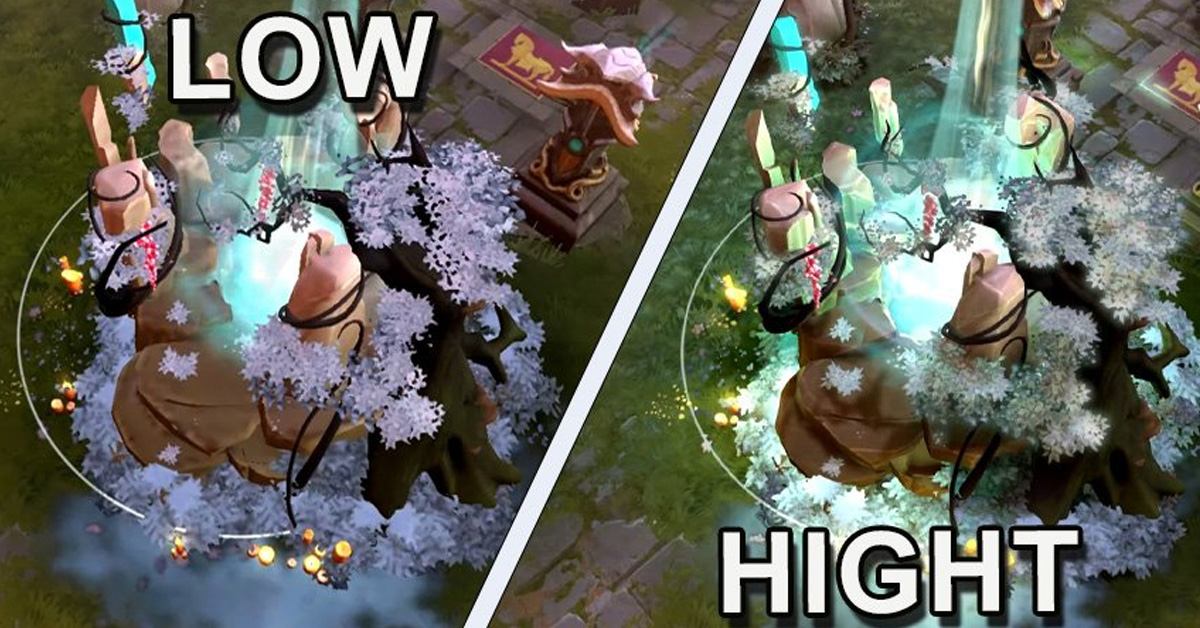
If you are a seasoned player or just beginning to engage with MOBA games, Dota 2’s underwhelming game experience can arise from having a slow PC. This comprehensive guide is meant to show you how best to configure your settings and tweaks that will get the most out of your Dota 2 experiences even on a low-end computer. You don’t have to buy expensive hardware, some little adjustments and here you go.
Understanding PC Specifications
Before delving deeply into optimization, it is important that one has a basic comprehension of his/her computer’s specifications. These include the processor (CPU), graphics card (GPU), memory (RAM), and storage. They all matter when considering how well your PC will run Dota 2 and other similar games. For instance, most game logic and AI are carried out by the CPU while the GPU takes care of rendering the visuals in a game like this one. RAM on the other hand stores temporarily data needed by both the GPU and CPU, whereas faster storage(i.e., HDD or SSD) loads games quicker.
Knowing what your PC is made up of helps in determining which setting should be applied for Dota 2. A less powerful GPU may for example require reduced graphics settings while lowering running background applications may benefit PCs having limited memory capacity.
Guide to Dota 2 Graphic Settings
One of the best ways that players can improve performance in Dota 2 on their low-end computers is by adjusting graphic settings for their respective games. Here are some of them:
Windowed Mode: When you're experiencing lag in-game, switching to windowed mode can enhance your gameplay significantly. Full-screen mode consumes more RAM, which can be challenging for low-end PCs. Windowed mode, on the other hand, utilizes less RAM, reducing the lag in the game.
Reduce Texture Quality: If your video card isn't particularly powerful, it's recommended to reduce the texture quality in the Video Settings. This ensures your GPU doesn’t take on the entire rendering load. Although the game may appear slightly less appealing due to lower graphics, the trade-off usually results in higher performance and FPS.
Change the Resolution: If you're using a wide monitor and a low-end PC, lowering the resolution can drastically improve your FPS. You might gain 20-30 FPS by switching to a lower resolution, like 1600x900, depending on your native resolution. It might take some time to get used to the slightly stretched visuals, but the smoother gameplay will be worth it.
Turn Off Unneeded Graphic Settings: Certain graphic options, such as Atmospheric fog, Tree wind, and High-quality water, can consume a significant amount of your VRAM, leading to frequent FPS stutters or even crashes. Disabling these features may reduce strain on your GPU, ensuring smooth gameplay.
Turn Off Anti-Aliasing and Vsync: Anti-Aliasing and Vsync can hinder performance on low-end PCs, causing micro lags or stutters. Disabling these options can boost your performance and eliminate any lags.
 Credit: Valve Corporation
System Adjustments for Improved Gameplay
In addition system settings optimization can greatly enhance Dota 2 experience Here are some alterations to consider:
Power Options: If you've tried all the in-game settings and still face issues, consider adjusting your PC's power options. By selecting the "Higher Performance" option in the Windows Power Options settings, you can prioritize performance over energy conservation. This could enable your system to run the game more smoothly, though it will consume more energy.
Turn Off Background Apps: Applications running in the background can consume RAM and reduce your game's performance. It's recommended to close any unnecessary apps before playing. Additionally, disabling the Steam in-game overlay can potentially improve your gameplay experience.
Verify the Integrity of Game Files: Sometimes, corrupt files in your system may cause crashes and gameplay dysfunctions. This issue can be easily resolved by verifying the integrity of game files in your Steam Library. Steam will verify the game files and replace any corrupted files, potentially fixing game crashing or stuttering.
Launch Options for Dota 2
Not only do launch options optimize Dota 2 performance for low-end PCs but they are also applicable to high end systems as well. There are several commands you can use to improve and optimize your gameplay such as -prewarm that increases initial launch load time but let you load into the game faster than you would have done normally. Other useful commands include -console and -novid that stop the initial game launching video from consuming RAM space on your computer or laptop. Adding these commands to your launch options can enhance performance, reduce stutter, and optimize your game. You can find full guide about it in our article.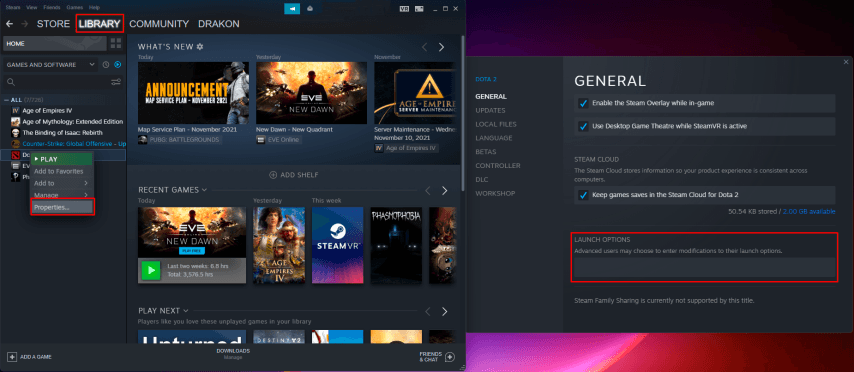 Credit: Valve Corporation
The Extreme Low Settings
If your PC has reached a critical condition yet you still want to keep playing Dota 2, then extreme low settings might just be what you need most at this moment in time. It prioritizes performance above graphics by reducing all graphic elements to minimum level possible under the setting name ‘Extreme Low.’ While it is typically seen as a last resort for most low-end PC gamers, it could turn out to be a lifesaver for those experiencing severe lags or crashes. These settings may also be helpful if you have a decent system but still experience lags.
How to Optimize PC for Dota 2
Optimizing your computer can significantly improve your gaming experience especially when playing Dota 2 on weaker PCs. The following are a few more ways to increase PC performance during Dota 2:
Update Drivers: Ensure that you have the latest drivers for your graphics card. Updating drivers can improve compatibility with the game and boost performance.
Clear Hard Drive Space: Make sure you have sufficient free space on your hard drive. Clearing temporary files and uninstalling unnecessary programs can help free up space.
Optimize RAM: Close background applications that may use up RAM. Consider adding more RAM if possible for a performance boost.
Run Anti-Virus Scans: Malware and viruses can impact PC performance. Regularly scan your computer for viruses and malware.
Adjust BIOS/UEFI Settings: In rare cases, tweaking settings in the BIOS/UEFI may impact performance. Be cautious, as changing these settings requires knowledge.
Optimize Internet Connection: Ensure your internet connection is stable. Occasionally restarting your router and modem can help.
Regular Updates: Keep an eye out for updates for both the game and your operating system. New versions may include performance improvements.
Always remember that each machine has its own features; hence not all of these tricks can help everyone equally. Experiment with different settings until you find what works best with your computer’s configuration.