The Ultimate Guide to Increasing FPS in Dota 2
Author: Hawk Live LLC
Last updated:
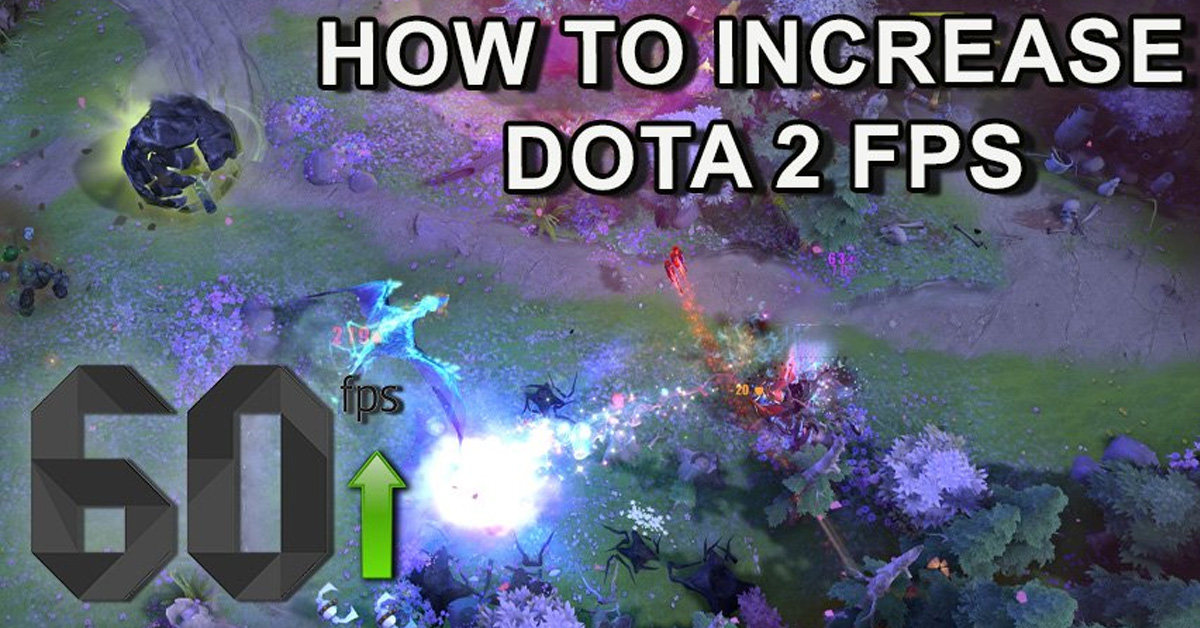
All game players are aware of the fact that the only thing separating an excellent gaming experience from a superior one lies in the details. Dota 2, as for every DotA 2 player, its FPS (Frames Per Second) is an important consideration point. The smoother the game plays out, the more immersed and responsive the game feels. If you’re a professional hoping to maximize your performance or simply a casual gamer wanting to have the best experience possible, optimizing your FPS in Dota 2 will greatly improve your gameplay. This all-inclusive guide can help you unlock high FPS in Dota 2 and take your gaming experience to another level.
Understanding Frame Rates in Gaming

Frame rates in games typically vary with different games, their system specifications and even settings used. Broadly speaking:
30 FPS: This is often considered the minimum acceptable frame rate for smooth gameplay. Many console games aim for a steady 30 FPS since it corresponds well with the 30Hz refresh rate of many TV screens.
60 FPS: This is the target for most PC games and many modern consoles. It provides a very smooth gaming experience and is the maximum rate for many standard monitors with a 60Hz refresh rate.
120 FPS: Some high-end gaming systems and monitors can handle this frame rate. It provides an extremely smooth and responsive gaming experience.
144 FPS and beyond: This is achievable with powerful gaming systems and high-refresh-rate monitors (144Hz, 240Hz, or even 360Hz). These high frame rates can provide a significant competitive advantage in fast-paced, competitive games.
Remember that having more frames per second might not be advantageous if it exceeds what your monitor can handle. The number of frames that a monitor can display each second is limited by its refresh rate which is measured in Hz. Your monitor will display no improvement if the game runs at higher fps than refresh rate of your monitor while screen tearing becomes likely where parts of multiple frames are shown within any single draw of the screen.
The Basics of FPS in Dota 2
 Before we delve into optimization, it’s important to understand what FPS means and why it is crucial for Dota 2. FPS stands for Frames Per Second which in simple terms refers to how many pictures a monitor can display within a second. A higher frame rate ensures smoother, more fluid visuals which improve gameplay experience as a whole. High FPS are essential especially in fast-paced action-filled games like Dota 2 where you require this competitive edge to react quickly and perform better.
However, getting high fps may not be easy at all times. Some factors that can lower your fps include outdated or incompatible graphics cards, insufficient RAM, and wrongly set game options among others. It is thus imperative to identify these bottlenecks and address them accordingly so as to boost your fps.
How to show fps counter in Dota 2
In Dota 2, it's straightforward to enable the FPS counter so you can keep track of your game's performance. This guide will walk you through the steps required.
Open Dota 2: Start by launching the game from your Steam library.
Access the Settings: On the top left corner of the main screen, click on the gear icon to open the settings menu.
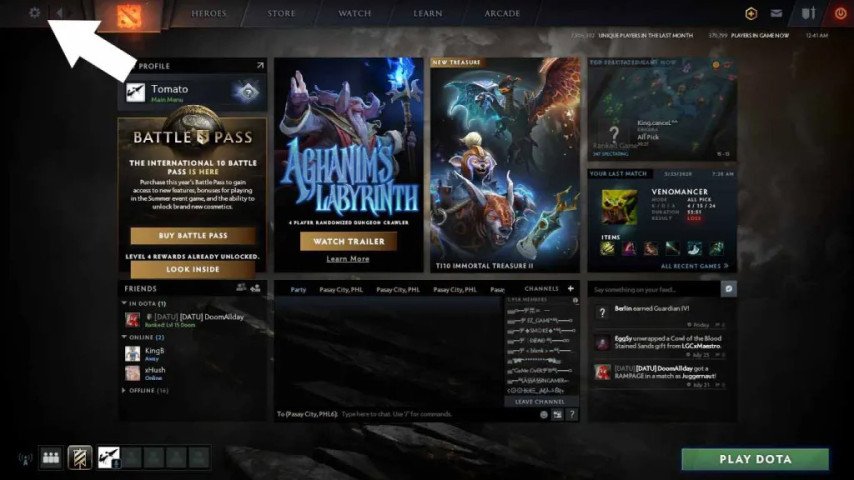
Go to the Options Menu: In the settings menu, you'll see several tabs. Click on the one labeled "Options".
Find the Advanced Options: Within the options menu, there's a section titled "Advanced Options". Click on this to expand it.

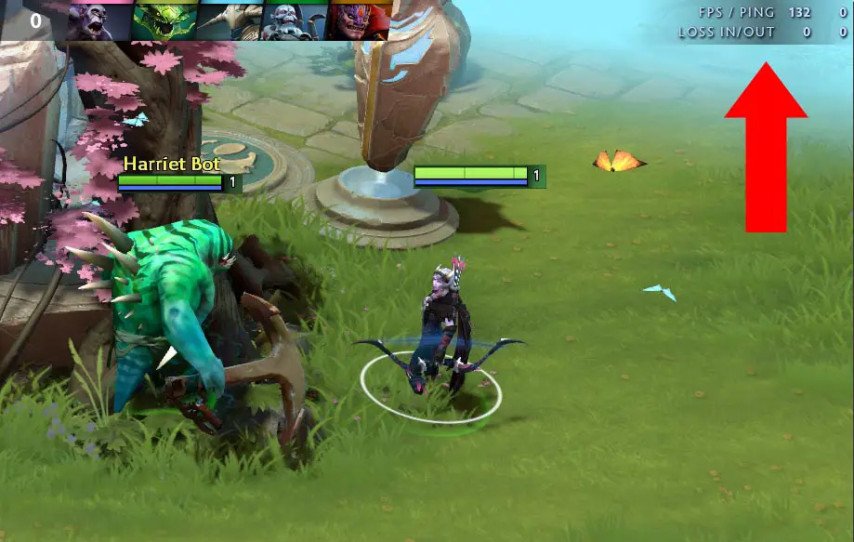
Enable the FPS Counter: Within the advanced options, you'll find a setting labeled "Display Network Information". Check this box to enable the FPS counter.

Check the Top Right of Your Screen: With the setting enabled, you'll see several pieces of information displayed in the top right corner of your screen during gameplay. One of these is your current FPS.
 This counter has more than one meaning in regards to how smoothly your game runs. It is also useful for diagnosing issues with performance. Low and constant frames per second mean that the computer hardware cannot keep pace with the demands of the game. This information can help you modify settings or upgrade hardware as part of enhancing Dota 2 experience. Remember, increased and consistent fps offers significant advantage when playing fast-paced games like Dota 2!
Optimizing Dota 2 Settings for High FPS
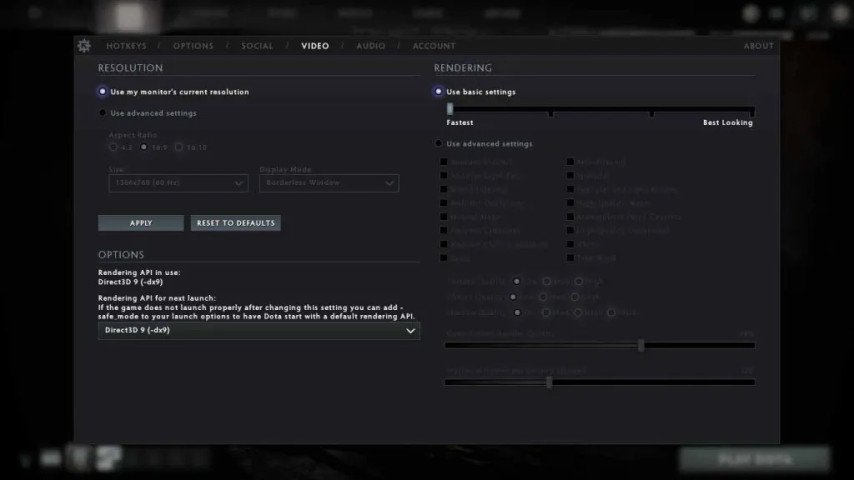
Optimizing your in-game settings is one of the quickest ways to boost your FPS in Dota 2. Here's a step-by-step guide on how to do it:
Launch Dota 2 and navigate to 'Settings'.
Click on the 'Video' option.
In the 'Rendering' column, select 'Use Advanced Settings' and uncheck all the checkboxes.
For the 'Quality' radio boxes, select 'Low'.
Set the 'Game Screen Render Quality' slider to 70%.
Keep the 'Maximum Frame Per Second' slider at 60-80%.
Remember these are general settings and may differ depending on your system’s capability; turning off VSync, Shadow Quality or Use Basic Settings , however, might improve FPS but would probably reduce visual quality; while enabling Use Advanced Settings and Computer Shaders can increase frame rate without much visual loss. Other settings such as Aspect Ratio Display Mode and Rendering API should be done according to maximum capabilities of your system possible.
Optimal FPS for a Seamless Dota 2 Experience
The average expected FPS in Dota 2 depends on the quality of your system. If you have the minimum requirements, expect an average frame rate of about 50-60 fps. Turn down the graphics to get it to run at 60-80 FPS. In the end, it is up to your personal preferences and hardware limitations to decide on what levels of graphics quality or frames per second that you should aim for. For some users high resolution graphics come first while others will want a smooth flow with higher frames per second.
The number of frames per second (FPS) you need to play Dota 2 smoothly can vary depending on your personal preferences and system capabilities. Here are some general guidelines:
30 FPS: This is often considered the minimum acceptable frame rate for many games, and Dota 2 is no exception.
60 FPS: This is a good target for most players. At this frame rate, Dota 2 will run smoothly, providing a responsive and enjoyable gaming experience.
120+ FPS: For competitive players, or those with high-end systems and monitors, achieving a frame rate above 120 FPS can provide an even smoother and more responsive gaming experience. This can be especially beneficial in fast-paced, competitive games like Dota 2 where every split second can matter.
Remember that these are general guidelines, there is a lot more to it than just FPS. What you need for frames per second may vary depending on your preference, the responsiveness of your monitor and the capabilities of your system. It is also important to note that when it comes to FPS, more does not mean necessarily better in all cases. For instance, if the refresh rate of your monitor is 60Hz, it won’t display more than 60 frames per second even if your system can generate them. Therefore, knowing capable systems and balancing those with personal preferences is essential.
How to Enable FPS Counter in Steam
In addition to the above method, you can also use the Steam built-in FPS counter to monitor your game's performance. Here's how you can enable it:
Open Steam Settings: Launch your Steam client and from the top navigation menu, click on 'Steam' and then 'Settings' from the dropdown menu.
Go to the In-Game Tab: Within the settings menu, click on the 'In-Game' tab on the left side.
Enable the Steam FPS Counter: On the 'In-Game' tab, you'll see an option for 'In-Game FPS Counter' at the bottom. Click on it and select the position where you want the FPS counter to be displayed during gameplay.
Choose High Contrast Color: There's also a checkbox for 'High contrast color' below the FPS counter option. Enabling this will make the FPS counter change color to be more visible against both dark and light backgrounds.
Confirm Changes: Click 'OK' to confirm the changes and close the settings menu.
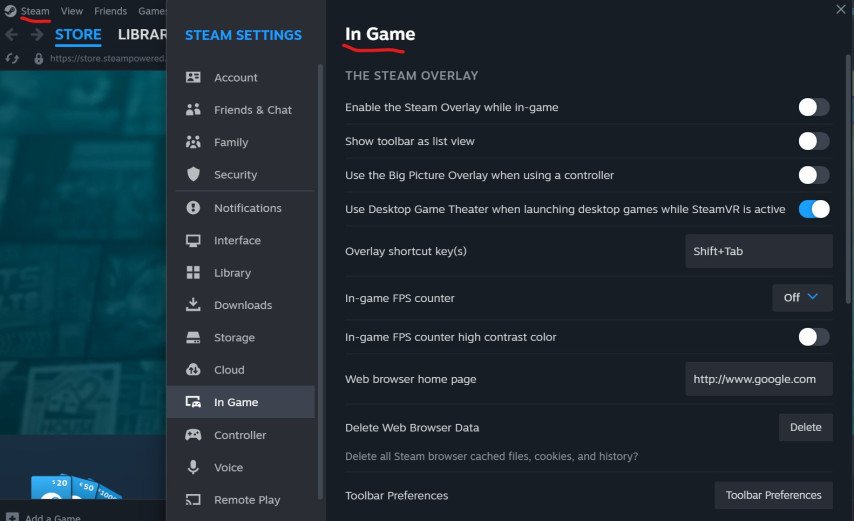

Now, whenever you launch a game through Steam, including Dota 2, you will see the FPS counter at the corner of your screen that you selected. This method is beneficial because it allows you to see your FPS in any game launched through Steam, not just Dota 2.
Console Commands in Dota 2 to increase FPS
In Dota 2, the console is a powerful tool that can help you optimize your gameplay and solve technical issues. Here's how you can use it:
Enable the Console: First, you need to enable the console in your Dota 2 settings. Go to Settings > Options > To Advanced Options. There, you will see an option named "Enable Console". Check that box.
Open the Console: After you've enabled the console, you can open it by pressing the tilde (~) key on your keyboard. If you're using a non-English keyboard layout, you might need to press a different key.
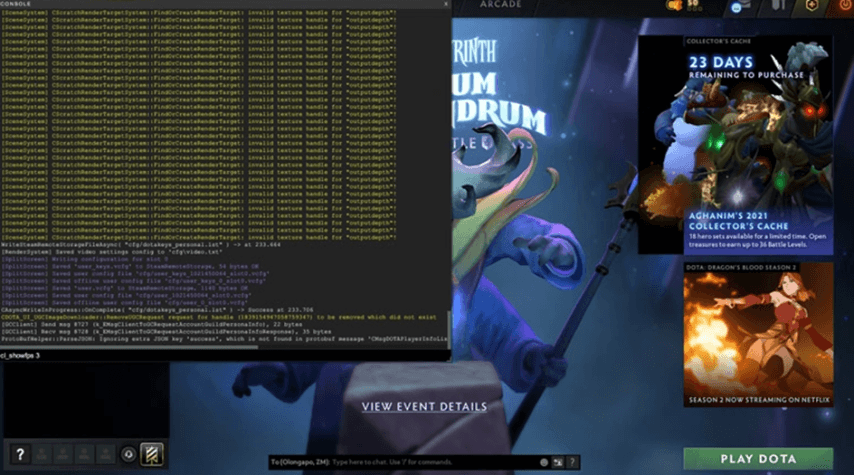
Once you have the console open, you can input various commands to manipulate the game in different ways. Here are some of the basic commands related to FPS and performance:
fps_max [number]: This command limits the maximum FPS your game can reach. Replace [number] with the desired FPS limit. For example, "fps_max 60" will limit your FPS to 60.
cl_showfps 1: This command enables the FPS counter in the top right corner of your screen.
net_graph 1: This command shows a detailed FPS counter along with network usage data. This can be useful for diagnosing performance and network issues.
r_renderoverlayfragment 0: This command can help improve performance on lower-end systems by disabling certain visual effects.
-high: This gives Dota 2 a high CPU priority in your system, which can help improve performance.
-nod3d9ex: This command can slightly increase your FPS and make using Alt+Tab faster.
-noipx: This prevents the loading of IPX connections, which can help save RAM.
-noaafonts: This command disables font smoothing, which can improve performance on some systems.
Remember, you should only use console commands if you know what they do and are comfortable with the potential effects on your game. Misuse of console commands can cause unexpected behavior or even game crashes. Always use caution and do your research before using a new command.
You can add the following commands to your Dota 2 config file (autoexec.cfg) to potentially increase your FPS:
dota_embers "0" r_screenspace_aa "0" r_deferred_specular "0" r_deferred_specular_bloom "0" dota_cheap_water "1" r_screenspace_aa "0" r_deferred_specular "0" r_deferred_specular_bloom "0" dota_cheap_water "1" r_deferred_height_fog "0" cl_globallight_shadow_mode "0" dota_portrait_animate "0" r_deferred_additive_pass "0" r_deferred_simple_light "0" r_ssao "0" mat_picmip "2" mat_vsync "0" mat_triplebuffered "0"
These commands adjust various graphical and performance settings. As with console commands, you should only use these if you understand what they do and are comfortable with the potential effects on your game. Always use caution and do your research before using a new command.
Additional Steps to Enhance Performance
In addition to basic settings and optimizations, there are several extra steps that can significantly boost Dota 2 performance:
1. Update Graphics Card Drivers:
Ensure you have the latest drivers for your graphics card installed. Manufacturers regularly release updates that can improve game compatibility and performance.
2. Clean System Junk:
Regularly clean your system of temporary files, cache, and unnecessary programs. This helps free up resources and improves performance.
3. Set Performance Profile:
Configure a performance profile in your graphics card settings. This allows your graphics card to operate with optimal parameters when launching the game.
4. Screen Resolution:
Lowering the screen resolution can significantly increase FPS. Experiment with different resolutions to find the optimal balance between image quality and performance.
5. Clean Fans and Cooling:
Ensure your computer's cooling system is working efficiently. Periodically clean fans from dust to prevent component overheating.
6. Optimize Background Processes:
Close unnecessary background processes and programs before launching Dota 2. This helps free up resources, providing more power to your system for gaming.
By following these additional steps, you can maximize your system's performance and enjoy Dota 2 with high FPS. Remember that effective optimization requires a careful approach, and minor changes can make a significant difference in your gaming experience.
Having solid frame rates in Dota 2 can make a huge difference in how much fun you have when playing it. Many different techniques exist for achieving smoother gameplay concepts ranging from optimizing in-game settings to investing money in powerful hardware. Nonetheless, one should understand that no universal solution exists here since everything depends on personal preferences, system capabilities and gaming requirements. Therefore experiment with different stuffs until you find what suits you best. Have fun!