CS2 mouse wheel jump bind
Author: Hawk Live LLC
Last updated:
In Counter-Strike 2, control adaptation and customization play a key role in achieving success. Among the various customization techniques, tying the jump function to the mouse scroll wheel and to the spacebar is particularly noteworthy. This customization not only improves control flexibility, but also allows players to easily perform jumps by choosing between the mouse wheel and the spacebar depending on the situation.
How to bind the mouse wheel jump via the console in Counter-Strike 2
Credit: Valve Corporation
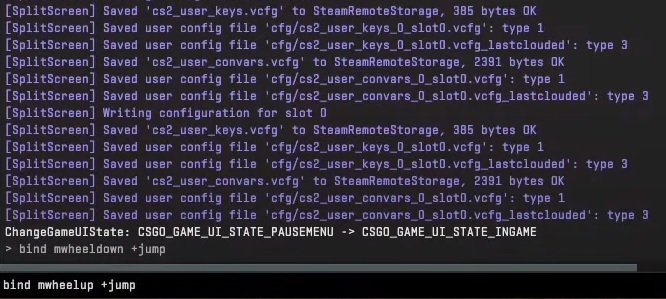
To activate this feature in Counter-Strike 2, you need to use the game's console. Entering the following command will set the necessary binding:
bind mwheelup +jump;bind mwheeldown +jump;bind space +jump
This command combines three separate directives separated by semicolons, allowing the game to interpret them as independent instructions. It assigns the jump action to the up and down scrolls of the mouse wheel and to the space key, providing versatility and ease of use.
How to bind the mouse wheel jump via the settings menu in Counter-Strike 2
For players who prefer customization through the game's menu, Counter-Strike 2 offers a simple and intuitive interface:
From the main menu, select settings by clicking on the gear icon.
Go to the Keyboard/Mouse section.
Find the motion settings section and select the jump option.
Assign the jump action to the desired mouse wheel movement by scrolling up or down.
It is important to note that once you change the default mouse wheel action to jump, the scrolling weapon switching feature will be disabled.
Conclusion
Tying the jump function to the mouse scroll wheel and spacebar in Counter-Strike 2 gives players a significant advantage by improving maneuverability and allowing them to quickly adapt to dynamic game situations. Whether through the console or the settings menu, customizing these keys makes jumping easier and enriches gameplay, making it more efficient and enjoyable.