How to Fix Your Microphone in Counter-Strike 2: Quick and Easy Guide
Author: Hawk Live LLC
Last updated:
The microphone is a crucial tool for communication in Counter-Strike 2, helping to coordinate team actions and directly affecting success in the game. However, there are instances when the microphone stops working, which can hinder the gameplay. In this article, we'll explain how to identify and resolve the issue.
How to Check if the Microphone is Not Working in CS 2
To check if your microphone is functioning properly in the game, follow these steps:
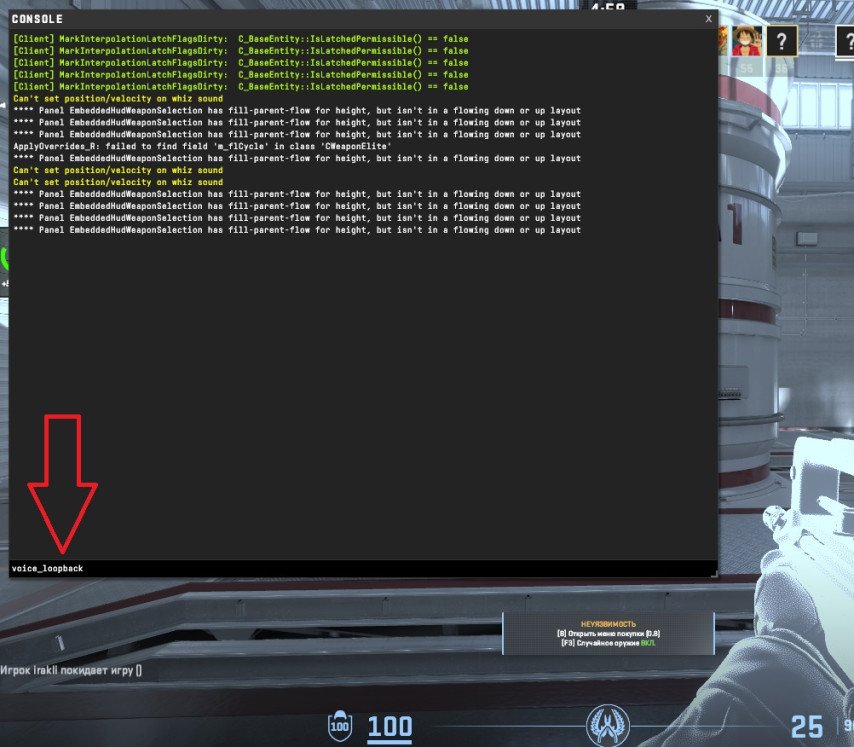
Open the console in the game (if it’s disabled, activate it in the settings).
Enter the command voice_loopback 1 and press Enter.
 Credit: Valve Corporation
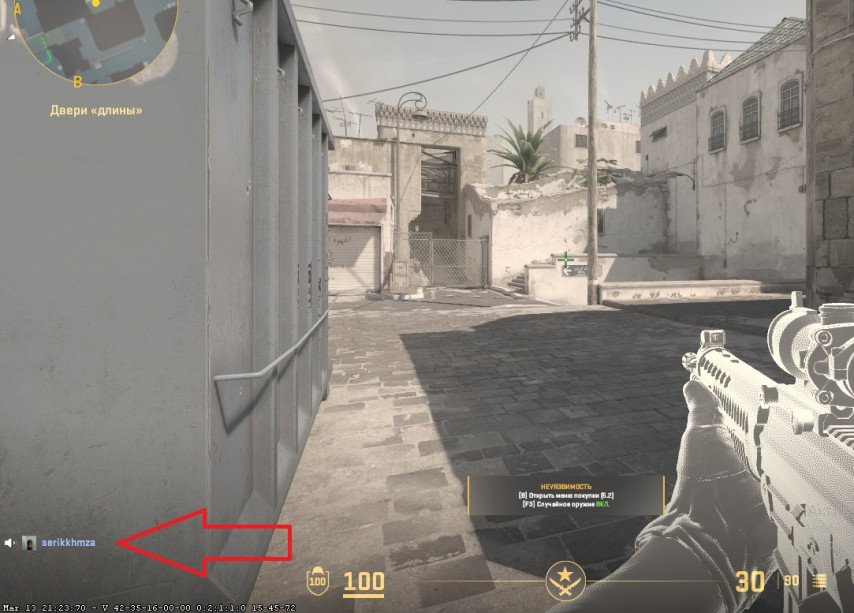
Say something in the chat. If the microphone is working, you will hear your own voice, and your nickname and a microphone icon will appear in the lower left corner of the screen.
If you don't hear yourself or the icon doesn’t appear, there’s an issue that needs to be resolved.
 Credit: Valve Corporation
Reasons Why the Microphone May Not Work in CS 2
There are several potential causes for microphone issues:
Incorrect in-game settings: Ensure that the correct microphone is selected in the CS 2 settings.
Incorrect Steam settings: Steam has its own sound settings, which can affect the performance of your microphone.
Operating system settings: Check that your microphone is activated and properly configured in Windows or your operating system.
Driver issues: Outdated or corrupted drivers may cause the microphone to malfunction.
Software conflicts: Other programs may block the microphone or interfere with its functionality.
Audio device conflicts: Conflicts between multiple audio devices (such as headphones and speakers) may affect the microphone’s performance.
How to Fix a Non-Working Microphone in CS 2
Here are a few methods to resolve microphone issues:
Method 1: Adjusting Settings through Steam
Open CS2 via Steam.
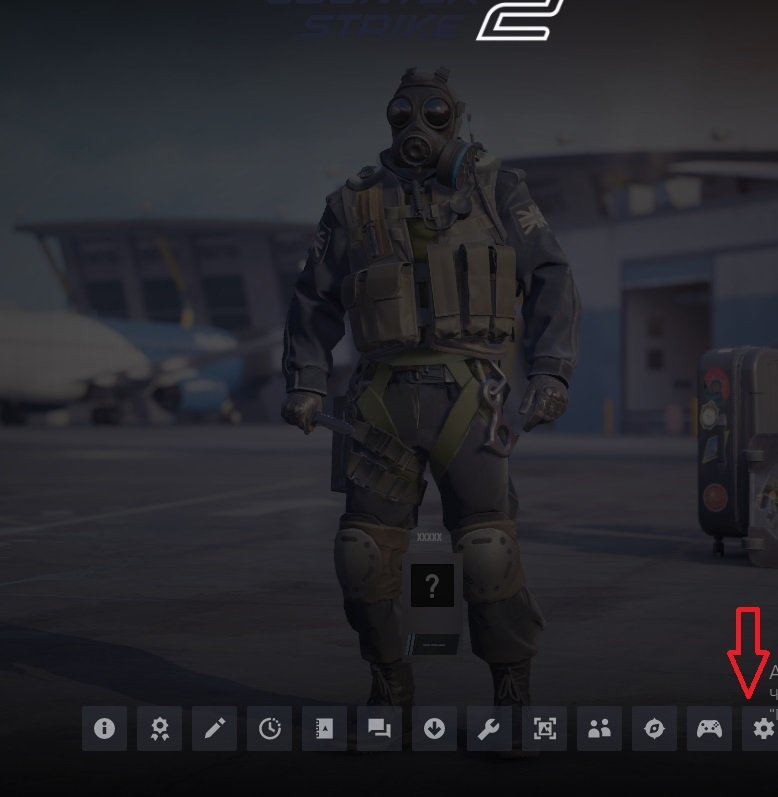
Open the Steam overlay (Shift+Tab) and go to "Settings."
 Credit: Valve Corporation
Go to the "Voice" tab and select the correct input device.
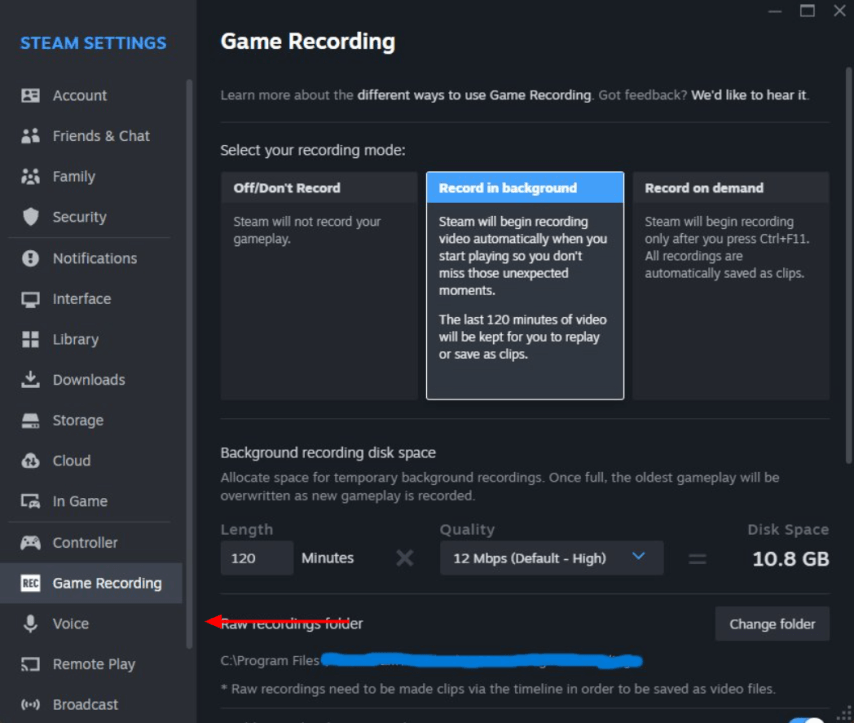 Credit: Valve Corporation
Set the input volume to maximum and disable the voice transmission threshold.
Check the "In-game voice" settings and repeat steps 3-4.
Method 2: Adjusting Settings through the Operating System
Open the "Sound Control Panel" in Windows.
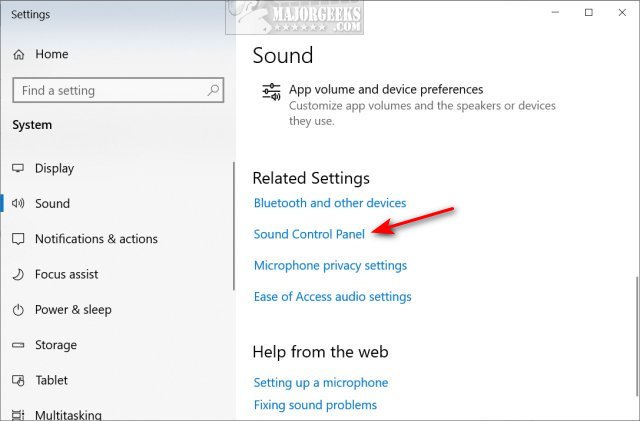
Credit: Microsoft Corporation
Go to the "Recording" tab, find your microphone, and disable any other input devices that are not in use.
Right-click on your microphone and select "Properties."
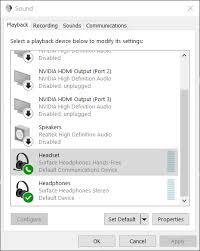
Credit: Microsoft Corporation
Go to the "Levels" tab and ensure the microphone volume is set to 100%. Adjust the microphone boost if necessary.
Conclusion
A functioning microphone is essential for successful team play in Counter-Strike 2. If your device isn’t working, follow the steps outlined for quick diagnosis and troubleshooting. Regularly check your settings and update drivers to avoid issues with your equipment.