How to change the screen resolution in CS2 and remove black bars
Author: Hawk Live LLC
Last updated:
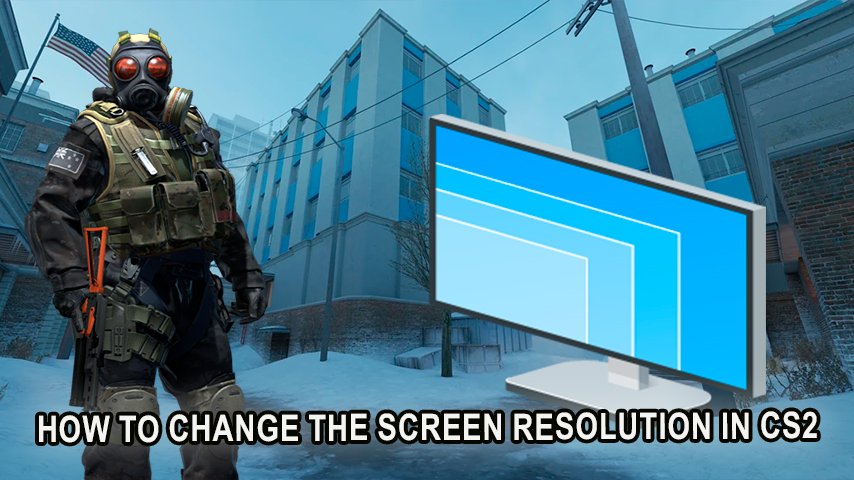
Counter-Strike 2 (CS2) is rather distinctive in the world of esports as it isn’t only game but also a sport. Changing the game’s settings such as crosshairs, sensitivity, resolution, etc. determines how a player performs and even his playstyle. In the past, we covered crosshair preferences of professionals, but at the same time, it seems rational to discuss resolutions, as they shape how the environment looks and the FPS. As setting the crosshair range is paramount, so is adjusting screen resolution to what one is comfortable adjusting as it has the same idea of enhancing target recognition and interactivity.
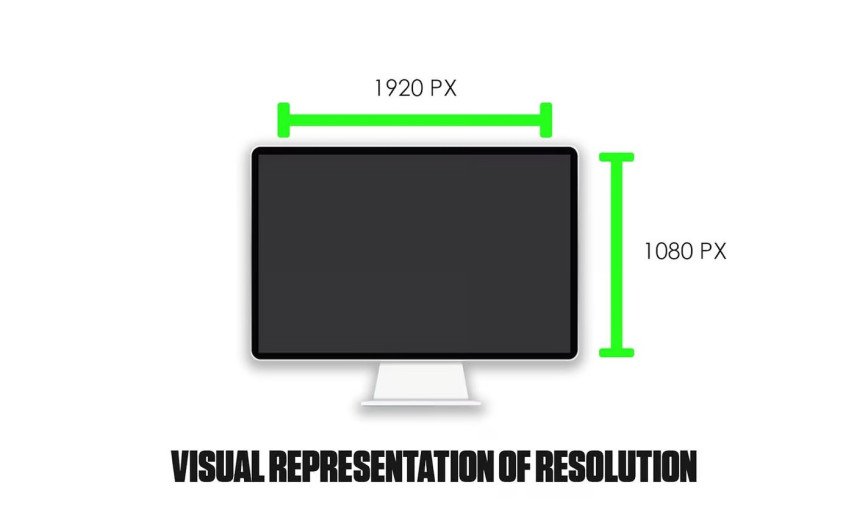 Credit: ProSettngs
Why Stretch the Screen?
In short: Stretched resolutions allows making the enemies appear much larger than they are which allows the player to target them with significant ease hence giving them a competitive advantage.
In detail: Stretching the screen enlarges a character’s model’s width making targets particularly more visible, allowing the player to effortlessly aim at them. Your crosshair sits at the center of the screen and due to the surrounding enemies being larger than usual, it makes you more accurate in crucial situations. Of course, this is two sided, on one side the resolution does assist however it does come at the cost of reducing the FOV, which may cause a fighter to not see everyone that occupies his peripheral vision.
How to Change the Resolution in CS2
 Credit: Valve Corporation
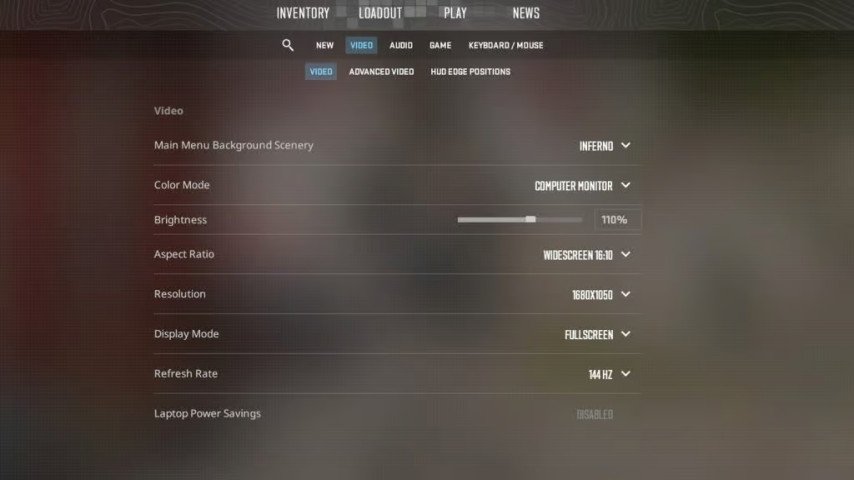
To change your screen resolution in CS2, do the following:
On the left side of the screen, click on the gear icon which will create a settings window.
Select Aspect Ratio in the Video section and scroll down until you see it.
Select your preferred aspect ratio, 4:3 would be for stretched purposes.
Find the Resolution dropdown and choose from the options available there.
If the game is not in fullscreen, you can select Fullscreen as the recommended option.
Go to the bottom right section of the page and click on Apply Changes to save your settings.
Common Screen Resolutions and Their Benefits
 Credit: ProSettngs
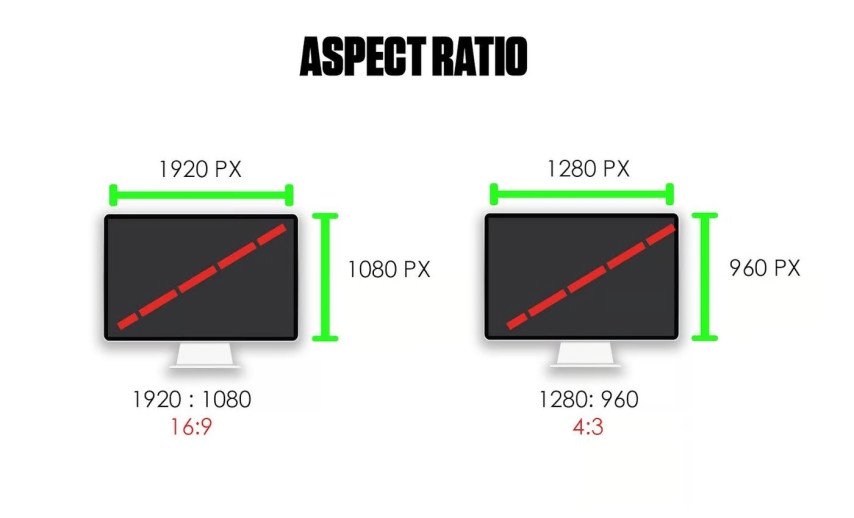
4:3 – The Classic Competitive Choice
This is a resolution which many professional players choose as it stretches the models making it easier to hit the opponent. It does reduce your peripheral vision but this is balanced with better focus on the center of the screen.
16:9 – Standard Widescreen Resolution
This offers a wider field of vision and graphical quality. Although, character models would appear smaller, there’s greater visibility on the outer edge of the maps which is beneficial in some game modes or situations.
16:10 – A compromise between the 4:3 and the 16:9
The 4:3 is still the one that dominates, but not many games or newer graphics cards use it, and with the 16:10 screens, They still standardize the 16:9 formats. There are those who find that balances the advantages and helps them perform better when compared to looking for clarity.
How to get rid of black bars vertically on screen
When you boot up your device and change your resolution to the 4:3 settings, it is possible that you might notice black bars on both the left and right sides of your screen which can be quite annoying. To fix this, you will want to change the resolution settings so that it expands to your entire screen.
NVIDIA Graphics Cards:
NVIDIA Control Panel option will appear when you right click on your desktop.
You can go to Adjust desktop size and position in the Display menu.
Scaling option will have the choice to select Full-screen.
You will need to click Apply to ensure changes are saved.
AMD Graphics Cards:
On your desktop right click and select the AMD Radeon Software option.
Go to the Display tab and then to Custom Resolutions.
Put in the Resolution (PX) and Refresh Rate in your in-game settings.
Select the Scaling Mode and then Full Screen to stretch your image out.
Player Resolution Aspect Ratio
Let us take a look at the resolution of some of the best players of the CS2
Player | Resolution | Aspect Ratio |
|---|---|---|
S1mple | 1280x960 | 4:3 |
ZywOo | 1024x768 | 4:3 |
sh1ro | 1280x960 | 4:3 |
m0NESY | 1280x960 | 4:3 |
Aleksib | 1440x1080 | 4:3 |
The great majority of professional players decide on the 4:3 ratio because it decreases their FOV but improves their reaction time and enemy visibility. The stretched models provide a huge benefit for tracking and hitting things since you are not able to focus on the small details, especially under pressure.
Why Do Professionals Players Use Lower Resolutions?
For competitive players resolution, crosshairs, sensitivity, and key binds are all on the same level of importance. It is a slow path to professional players that involves a lot of games, however lowering your resolution might make that journey a little bit faster, it increases your fps while lowering input lag, which can help your game. For instance, 1280x960 is a lower resolution that has a lower graphical requirement and therefore leads to more fps, this is desirable in any responsive game like Counter-Strike 2. The quicker the game runs the lower your input lag will be making the odds in your favor.
What Is Aspect Ratio and Resolutions
Resolution essentially signifies the amount of pixels on the screen. Resolutions such as 1920x1080 are more hardware dependent which is why it requires more pixels than a lower resolution while also being graphic friendly. But a 1280x960 resolution turns out to be the complete opposite as it improves FPS and cuts down input lag by not overworking the system.
Aspect Ratio, on the other hand, is a metric that is used to calculate the proportion of the height and width of the screen or image. Most CS2 professionals are accustomed to using the 4:3 aspect ratio in order to stretch the image of an enemy in front of them, however, a 16:9 aspect ratio allows to see more of our intended field of view as the image appears wider to us.
What Is The Difference Between 16:9 and 4:3 Stretched In CS2?
It goes without saying that there are trade offs when utilizing 16:9 opposed to 4:3 stretched:
16:9: It obviously has the better graphical quality and gives a broader field of view to the player although it does make the enemies smaller.
4:3 (Stretched): Makes it possible for the player to easily hit enemies as their models are enlarged for the player, however, the FOV does get reduced overall with this. This can end up causing situations where enemies closer to the edges of the screen will go unnoticed in crucial combat
Due to the upper hand that it provides in tracking down foes, roughly 70% of all CS2 professionals utilize the 4:3 stretched resolution Video.
Conclusion
Removing directly links the process of enhancing realistic visuals of gaming in retrospective to boosting gameplay altogether. And remember, don’t feel ‘less’ from using lower resolution for achieving higher fps, or vice versa, for that is the fundamental process of finding the best settings for yourself. So do check out some settings and focus on the ride instead of the destination as each match in CS2 is bound to improve your skills.