Best Viewmodel Commands in CS2
Author: Hawk Live LLC
Last updated:

Counter-Strike 2 (CS2) is one of the most popular FPS games with millions of active players. In CS 2, it is not only important to master the skills of the game, but also to skillfully customize the game interface. Among the key aspects that affect the comfort of the game and player performance are Viewmodel Commands - settings that determine the position and appearance of weapons on the screen.
What are Viewmodel Commands
Viewmodel Commands are a set of commands in Counter-Strike 2 that determine the position and appearance of weapons on the player's screen. They allow you to customize various parameters such as weapon model position, tilt angle, size and other visual aspects, which in turn can affect the comfort of the game and effectiveness in combat situations.
How to change Viewmodel in console
 Credit: Valve Corporation
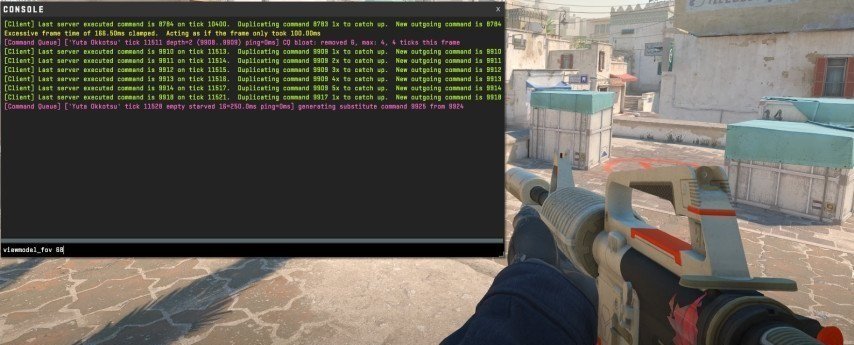
Changing Viewmodel Commands in CS2 is done through the game console. To customize Viewmodel Commands to your liking, the following steps should be completed:
Open the console by pressing the "~" key.
Enter the "viewmodel_presetpos" command to view the available preset weapon positions.
Select the desired weapon position by entering the command "viewmodel_presetpos [number]".
After selecting the position, adjust additional parameters such as angle, size, etc. using the appropriate commands.
Save the changes by entering the command "cl_viewmodel_shift_left_amt 0; cl_viewmodel_shift_right_amt 0".
Best Viewmodel Commands in CS2
Enter the appropriate commands to customize your viewmodel:
viewmodel_fov xx (where xx is a value between 54 and 68) defines your field of view.
viewmodel_offset_x X (where X is a value between -2.5 and 2.5) defines the horizontal position of the weapon.
viewmodel_offset_y Y (where Y is a value between -2 and 2) defines the vertical position of the weapon.
viewmodel_offset_z Z (where Z is a value between -2 and 2) defines the depth of the weapon on the screen.
Additional recommendations:
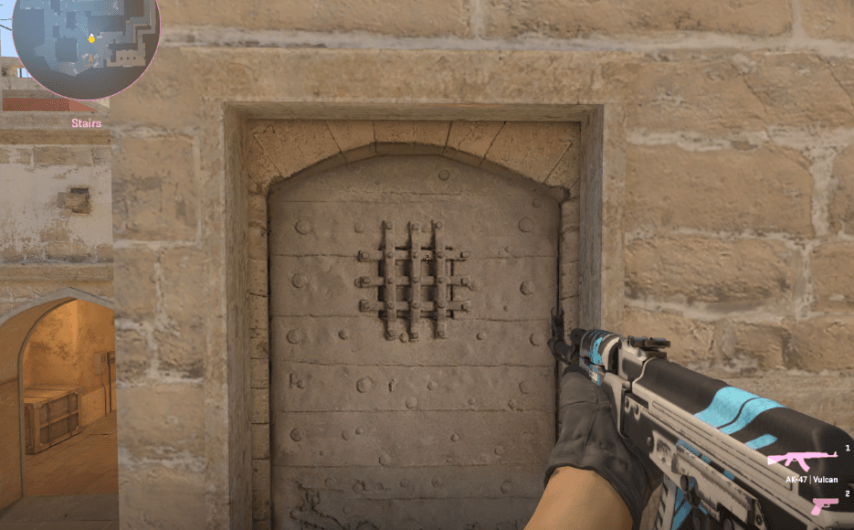
In addition to the basic commands presented above, it is worth paying attention to the preset Viewmodel modes:
 Credit: DotEsports
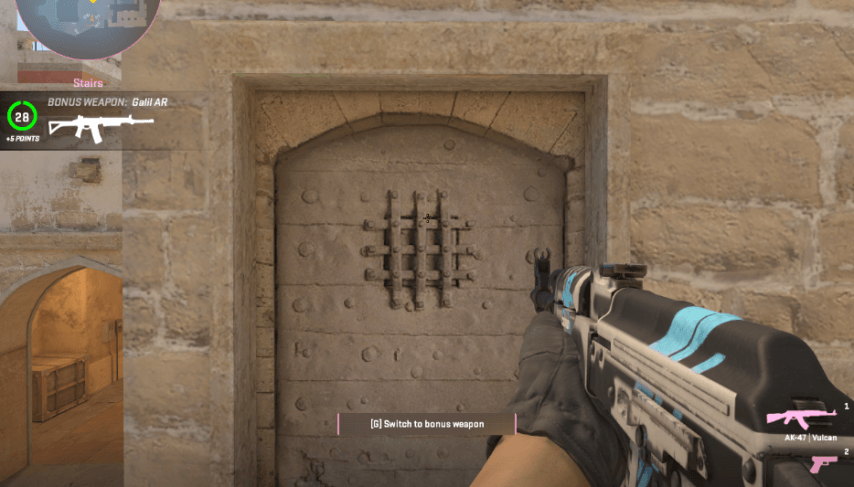
Classic: Classic viewmodel, reminiscent of older versions of Counter-Strike.
 Credit: DotEsports
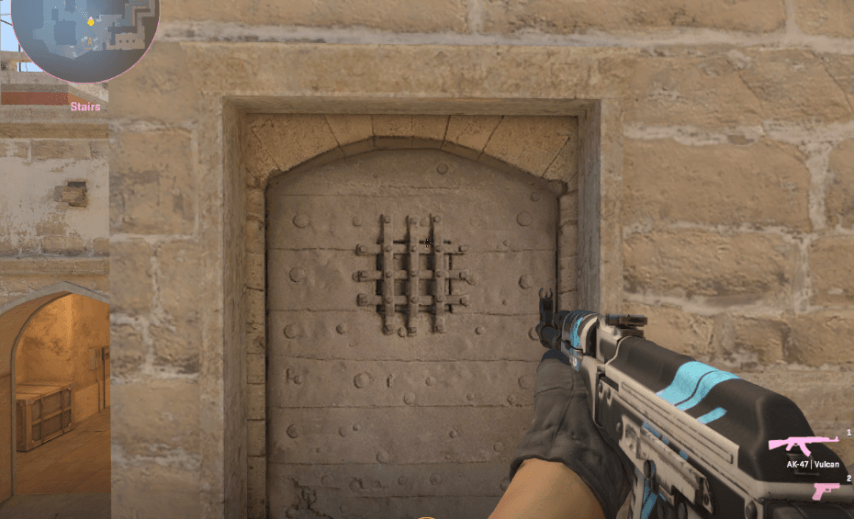
Couch: A model that shifts weapons to the center of the screen and slightly upwards.
 Credit: DotEsports
Desktop: A model that places the weapon in the corner of the screen, but slightly higher than Classic.
Remember that the Viewmodel settings can be changed at any time, allowing you to tweak them to suit your play style. Choose the settings that are most comfortable for you and enjoy playing CS2.
It is recommended that you use certain Viewmodel commands for ease of play and increased efficiency. Here are some of the best commands that can help you in CS2:
Command | Description |
|---|---|
viewmodel_offset_x | Sets the horizontal offset of the weapon model |
viewmodel_offset_y | Sets the vertical offset of the weapon model |
viewmodel_offset_z | Sets the depth of the weapon model on the screen |
viewmodel_fov | Sets the view angle of the weapon model |
viewmodel_presetpos | Selects the preset position of the weapon model |
cl_bob_lower_amt | Sets how much the arm and weapon model presses against the bottom of the screen while running |
Conclusion
Viewmodel Commands in CS2 is an important aspect of the game interface that allows you to customize the position and appearance of weapons on the screen. Selecting the optimal commands can greatly improve the comfort of the game and the efficiency of the player. Use the recommendations and customize Viewmodel Commands to your preferences to get the best results in CS2.