Best CS 2 settings for low-end PC
Author: Hawk Live LLC
Last updated:
Counter-Strike 2 is a long-awaited release from Valve that has captured the attention of millions of gamers. However, not everyone can enjoy the game to the fullest due to their PCs' limited capabilities.
Aysafromnazareth recommended optimizing Counter-Strike 2 for a budget laptop or a very weak computer. The specialist created a unique configuration file that adjusts the graphics with the game's internal tools—these settings are not available in the public interface.
Instructions on how to install the configuration file
Download the configuration file cs2video.txt.
Find the folder with configs in the CS:GO directory. Usually located at the path Steam\userdata\your Steam ID\730\local\cfg.
Open the valid cs2video.txt configuration file and copy the value in the DeviceID field.
Enter the copied value into the DeviceID field of the downloaded cs2video.txt configuration file to make it compatible with your device. Also specify your screen resolution in the appropriate fields. Save your changes.
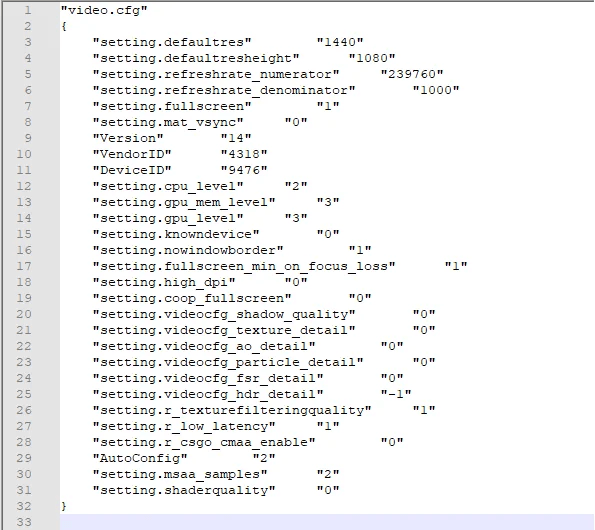
Credit: Reddit
Replace the current cs2video.txt configuration file with the downloaded one in the configs folder in the game directory from step #2.
After replacing the cs2video.txt configuration file, do not make any changes to the game's image settings, as the settings will be reset and require re-installation.
Steam settings for CS2
There are also several items in the Steam settings menu that can affect Counter-Strike 2 performance. Follow these recommendations:
Under "Friends and chat", uncheck the box that is responsible for activating animated avatars and frames.
Under "Interface" for the "Window at startup" option, select "Library". Here also uncheck the checkbox that is responsible for rendering web pages using the video card.
Under Library, uncheck the first three options: low network load, simplified mode, and hide community content.
Under Remote Play, make sure the feature is disabled.
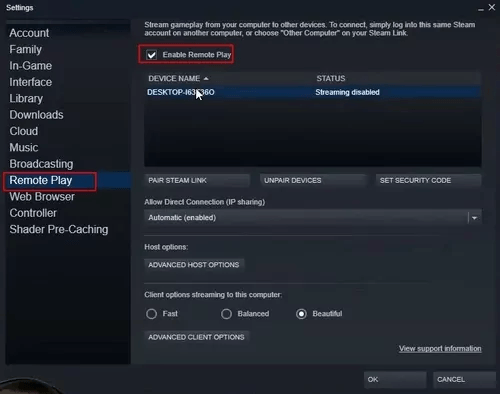
Credit: Airdroid
Under "Broadcasting" for the "Privacy Settings" option, select "Broadcasting disabled".
Also using Steam, you can quickly find the folder with the file cs2.exe, in the properties of which it is recommended to disable full screen optimization. To do this, go to the following path: Steam Library > PCM on CS2 > Properties > Installed files > Browse... > game > bin > win64 > Click on cs2.exe > Properties > Compatibility > Check the "Disable Full Screen Optimization" option. In the same window, click "Change High DPI Settings" where you check the "Override High Resolution Scaling Mode" option with the "Application" selection.
Console commands for CS2 optimization
cq_netgraph 1 - visual information about internet connection stability.
cl_showfps 1 - shows your FPS. According to unconfirmed reports, can negatively affect performance.
voice_modenable 1/0 - enables/disables voice chat in the game.
fps_max 0 - disables any restrictions on the number of FPS frames.
r_drawtracers_firstperson 0 - disable tracers when shooting from your face.
Launch parameters for CS 2
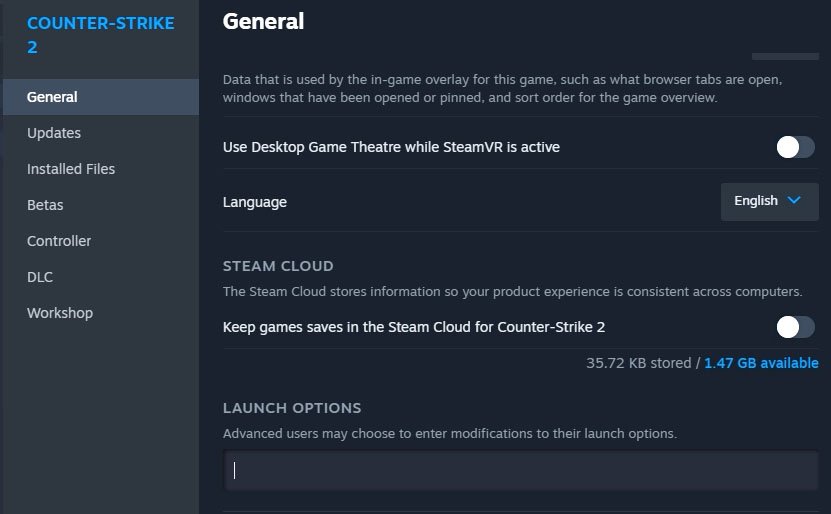 Credit: Vlave Corporation
Useful launch parameters that currently work in Counter-Strike 2:
-novid - prevents the game's launch video from playing.
-high - provides a high priority of CPU usage.
-nojoy - reduces RAM usage by disabling joystick input.
Graphics performance settings in CS 2
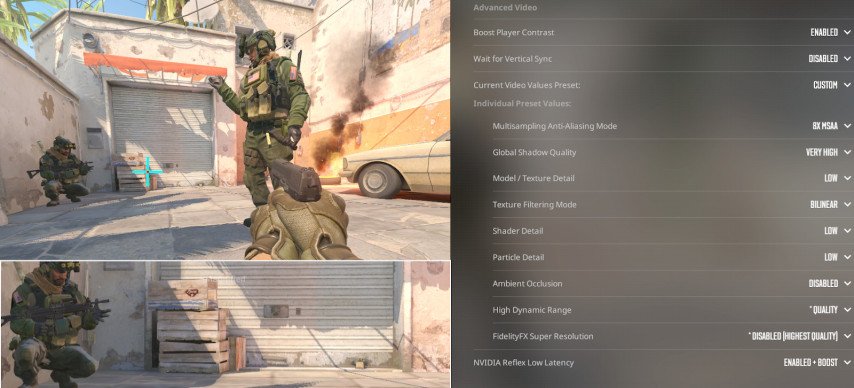
Resolution: Set the screen resolution that matches your monitor. If your computer is weak, try lowering the resolution.
Enhanced Player Contrast: Turn this on. This will help you see the players better.
Anti-aliasing mode: Select "FXAA" or "CMAA2".
Shadow Quality: Set to "Low".
Model and texture detail: Set to "Low" or "Medium".
Texture Filtering: Set to "Bilinear".
Shader Detail: Set to "Low".
Particle Detail: Set to "Low".
Global Shading: Disable.
Extended Dynamic Range: Disable.
FidelityFX Super Resolution: Disable.
NVIDIA Reflex Low Latency: Disable.
Windows Settings
Power: Select High Performance.
Visual Effects: Disable unnecessary visual effects.
Autoload: Disable unnecessary applications from Autoload.
Optimize your PC to play CS 2
Disk Defragmentation: Defragment your hard disk.
Driver Update: Update drivers for your video card and other devices.
Disabling Services: Disable unnecessary Windows services.
Customizing your mouse: Set your mouse to the optimal settings.
 Credit: Valve Corporation
Additional tips
Close all unnecessary applications: Close all applications that may consume your computer's resources.
Restart your computer: Restart your computer before running the game.
Check system requirements: Make sure your computer meets the minimum system requirements for CS2.
Important: Before making any changes to your settings, it is recommended that you make a backup of your files.