Best Audio settings in Dota 2
Author: Hawk Live LLC
Last updated:
In the world of Dota 2, every detail matters. From the strategic positioning of your heroes to the precise timing of your attacks, success in this game hinges on your ability to master its many complexities. One often overlooked aspect of this mastery is audio. The soundscape of Dota 2 is rich and informative, providing players with crucial information that can mean the difference between victory and defeat. In this comprehensive guide, we will delve into the intricacies of Dota 2's audio settings, helping you optimize your setup for the best possible gaming experience.

Setting Up Your Microphone
Effective communication is a cornerstone of success in Dota 2. Whether you're planning a surprise attack, coordinating defense strategies, or simply sharing information about the enemy's movements, having a properly set up microphone is crucial. Here's a more detailed guide on how to set up your microphone for optimal communication:
Accessing the Settings Menu: Start by launching Dota 2. Once you're in the main menu, look for the gear icon in the top left corner of your screen. This is the settings menu, which houses all the customizable options for Dota 2, including audio and microphone settings.

Navigating to the Audio Tab: Within the settings menu, you'll find several tabs each dedicated to a different aspect of the game. Click on the 'Audio' tab to access the audio settings.

Adjusting Microphone Settings: In the 'Audio' tab, you'll find a section labeled 'Voice'. Here, you can adjust your microphone's volume and test it to ensure it's working correctly. Use the 'Test Microphone' button to check if your voice is being picked up and adjust the 'Microphone Volume' slider until your voice is clear and audible without being too loud or distorted.
Choosing Between Open Mic and Push to Talk: Dota 2 offers two options for voice communication - 'Open Mic' and 'Push to Talk'. 'Open Mic' leaves your microphone on at all times, which can be useful if you need to communicate quickly without pressing any buttons. However, it can also pick up background noise, so it's best used in quiet environments. 'Push to Talk', on the other hand, only activates your microphone when you press a specific key. This is great for noisy environments or if you only want to communicate at specific times. If you choose to use 'Push to Talk', you can set your shortcut key in the 'Push to Talk Key' section.
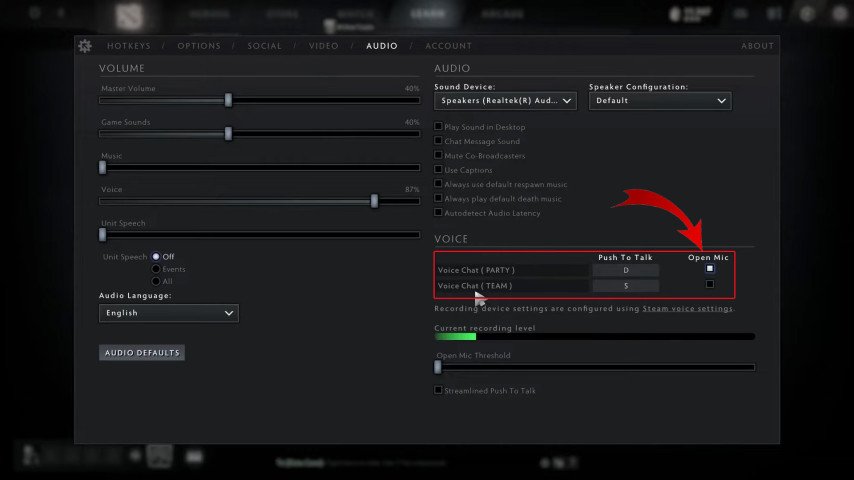
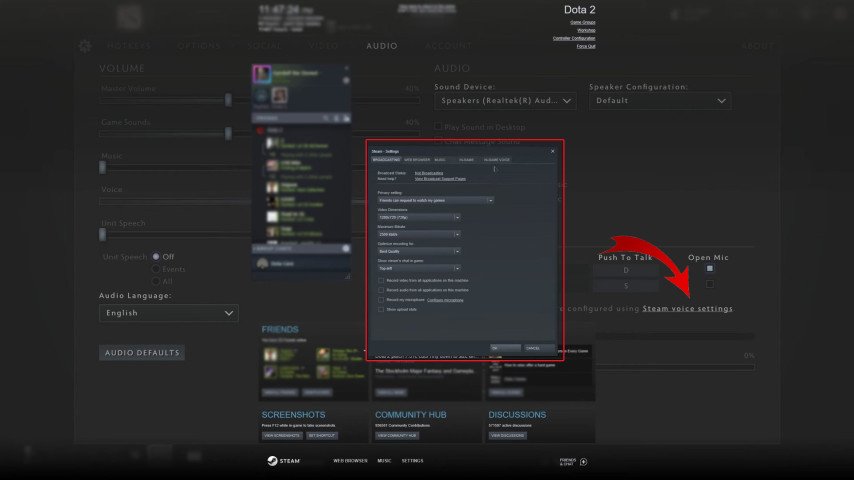
Setting Up Steam Voice Settings: For further adjustments, click on 'Steam voice settings' above the 'Current recording level'. This will open a new window with additional settings for your microphone, including options to change the device used for voice recording and to adjust the voice transmission and reception volumes.
Remember, clear and effective communication can be a game-changer in Dota 2. Therefore, take the time to ensure your microphone is set up correctly and that your team can hear you clearly. This way, you can coordinate strategies more effectively and increase your chances of securing victory.
Optimizing Audio Settings
The audio settings in Dota 2 are designed to provide a rich and immersive gaming experience. However, to truly benefit from this, you need to optimize these settings according to your personal preferences and gaming environment. Here's a more detailed guide on how to fine-tune your audio settings for the best possible gaming experience:
Accessing the Audio Settings: Start by launching Dota 2 and clicking on the gear icon in the top left corner to open the settings menu. From there, select the 'Audio' tab to access the audio settings.
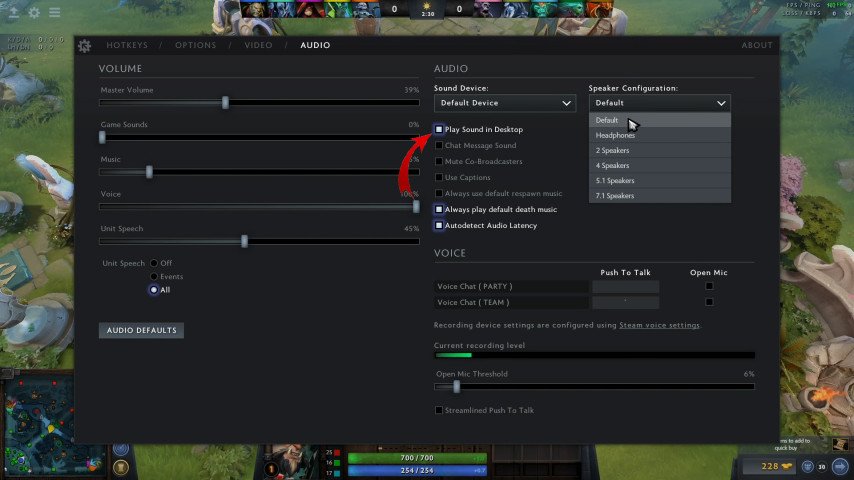
Master Volume: This slider controls the overall volume of the game. Adjust it to a level that is comfortable for you, but ensure it's loud enough for you to hear important audio cues.
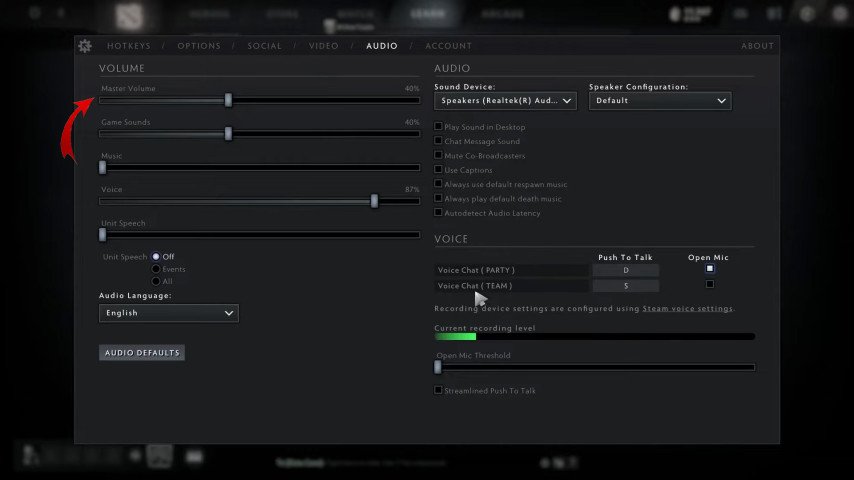
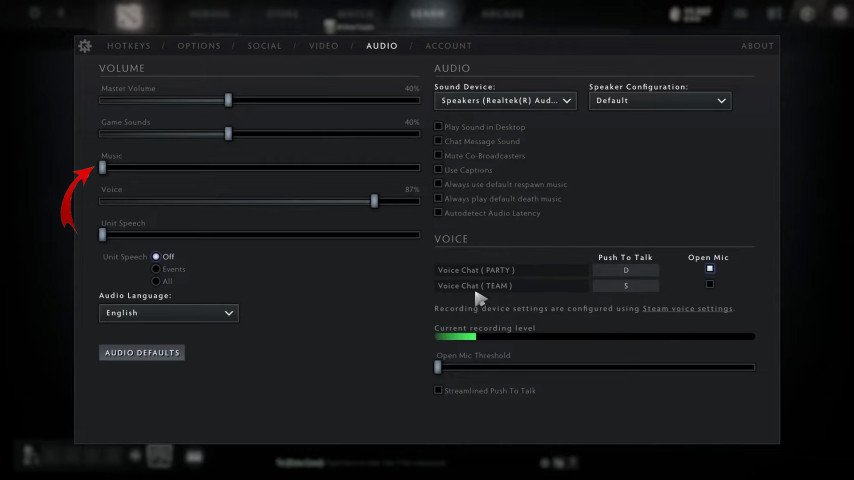
Music Volume: This slider controls the volume of the game's background music. While the music adds to the game's atmosphere, it can sometimes drown out important sound effects. Adjust this to a level that allows you to enjoy the music without missing out on crucial audio cues.
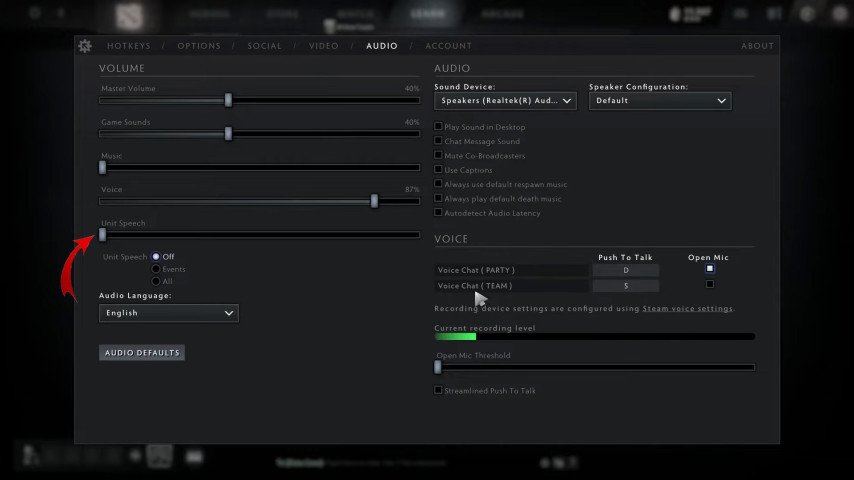
Unit Speech: This slider controls the volume of your heroes' voice lines. These voice lines can provide useful information during the game, so it's important to set this at a level where you can clearly hear your heroes.
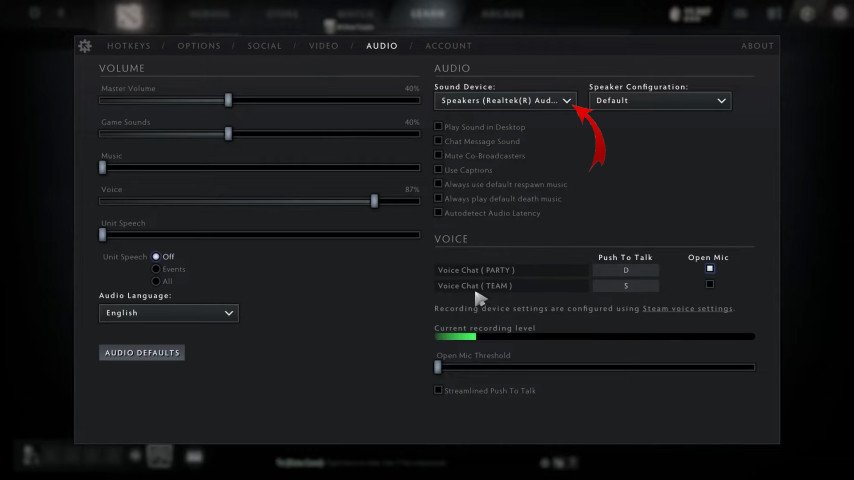
Sound Devices: Under this section, you can select your preferred output device. If you're using headphones, make sure they are selected here. If you're using speakers, select them instead.
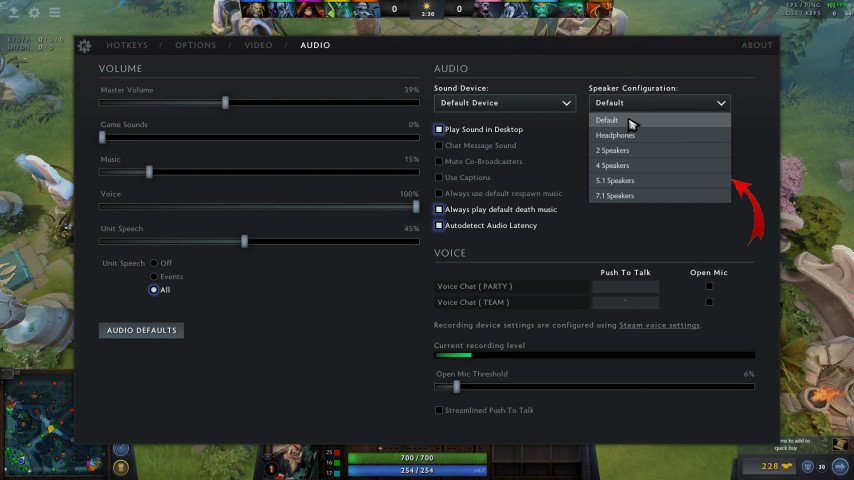
Speaker Configuration: This option allows you to select your speaker setup. If you're using headphones, select 'Headphones'. If you're using a surround sound system, select '5.1 Surround'. This ensures the game's audio output is optimized for your specific audio setup.
Play Sound in Desktop: This option allows Dota 2 sounds to continue playing even when you alt-tab out of the game. If you often find yourself multitasking or if you don't want to miss any in-game audio cues while switching between applications, enable this option.
Advanced Audio Properties: For more advanced users, Dota 2 also offers a range of additional audio settings. These include options to enable or disable various sound effects, adjust the volume of the game's ambient sounds, and control the volume of the game's user interface sounds.
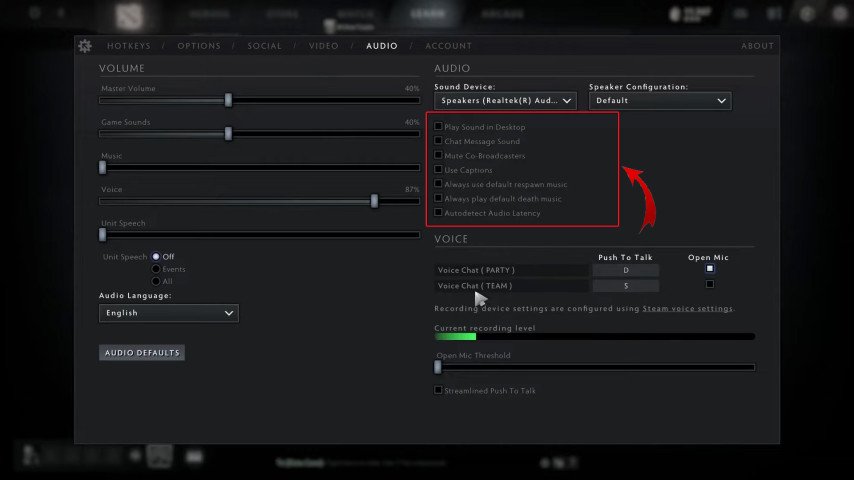
By carefully adjusting and optimizing these settings, you can create an audio environment that not only enhances your enjoyment of the game but also gives you a competitive edge by ensuring you don't miss any crucial audio cues. Remember, the right audio settings can make a significant difference to your Dota 2 experience, so take the time to fine-tune them to your liking.
Troubleshooting Common Audio Issues
Even with the best setup, you may occasionally encounter audio issues while playing Dota 2. These issues can range from minor annoyances to major problems that can hinder your gaming experience. Here's a more detailed guide on how to troubleshoot some of the most common audio issues:
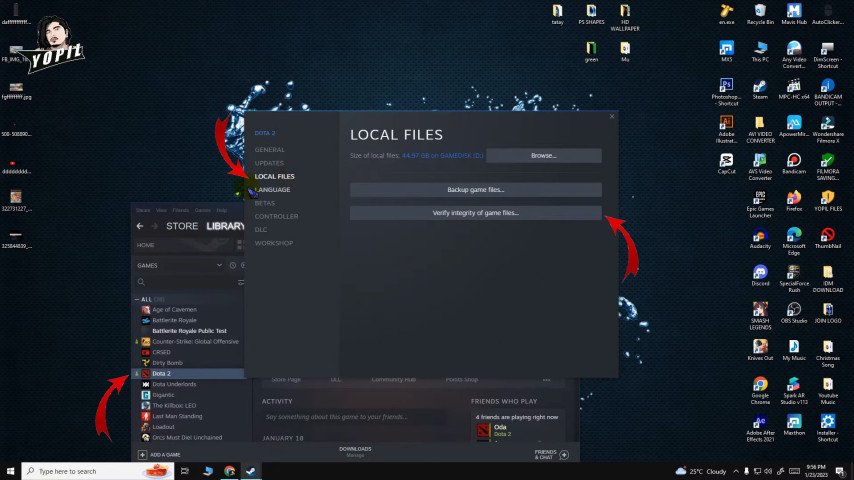
No Sound: If you're not getting any sound from Dota 2, there are several things you can check. First, ensure your computer's audio settings are correctly configured and that your output device is working correctly. You can do this by playing a sound from another application or from your operating system's sound settings. If that's not the issue, check the volume settings in Dota 2 and on your computer to make sure they're not muted or set too low. If you're still not getting any sound, try verifying the integrity of your game files through Steam. This can be done by right-clicking on Dota 2 in your Steam library, selecting 'Properties', going to the 'Local Files' tab, and clicking 'Verify Integrity of Game Files'. This will check for any missing or corrupted files and download replacements if necessary.
Microphone Not Working: If your teammates can't hear you, there are several things you should check. First, make sure your microphone is correctly set up in both Dota 2 and your operating system. You can test your microphone in the Dota 2 settings under the 'Audio' tab. If your microphone is working in other applications but not in Dota 2, it may be a problem with Steam's voice settings. To access these, go to the 'Steam' menu in the top left corner of the Steam client, select 'Settings', then 'Voice' in the left-hand menu. Here, you can change your input device, adjust the transmission volume, and test your microphone.
Sound Crackling or Distortion: This can be caused by a variety of factors. One common cause is outdated audio drivers. To update your drivers, go to the website of your sound card manufacturer, look for the latest drivers for your model, download and install them. If the problem persists, it may be an issue with your audio device. Try using a different speaker or headphones to see if the problem continues. If the distortion only occurs in Dota 2, it may be a problem with the game's audio files. In this case, try verifying the integrity of the game files through Steam as described above.
Remember, troubleshooting is a process of elimination. If the first solution doesn't work, move on to the next one. With patience and persistence, you can resolve most audio issues and get back to enjoying your game.
Best Audio Devices for Dota 2
Choosing the right audio device can have a significant impact on your Dota 2 gaming experience. Quality audio allows you to better understand what's going on in the game, track enemy movements and coordinate with your allies. Here are some of the best audio devices recommended for playing Dota 2:
HyperX Cloud II Headphones: These headphones are known for their high-quality sound and comfort during prolonged use. They provide clear and detailed sound reproduction, which is ideal for gaming.
SteelSeries Arctis 7 Headphones: These wireless headphones offer great sound quality with low latency, perfect for online gaming.
Creative Sound BlasterX G6 Sound Card: If you want to further improve sound quality, consider purchasing an external sound card. This model offers high-quality audio and support for 7.1 virtual surround sound.
Blue Yeti Microphone: For those who want to ensure clear and high-quality voice communication, the Blue Yeti is a great choice. This microphone is known for its recording quality and ease of use.
When choosing an audio device for Dota 2, it's important to consider not only sound quality, but also comfort during prolonged use. Regardless of your choice, the right audio device can greatly improve your gaming experience and give you a competitive edge. Conclusion
Mastering the audio settings in Dota 2 can significantly enhance your gaming experience and performance. By setting up your microphone correctly, optimizing your audio settings, troubleshooting common issues, and utilizing advanced audio tips, you can gain a competitive edge and immerse yourself fully in the rich soundscape of Dota 2. Remember, every detail matters in Dota 2, and audio is no exception. So, dive into your settings, fine-tune your audio, and let the sound of victory ring out.