How to Unistall Valorant: Step-by-Step Guide
Author: Hawk Live LLC
Last updated:
Valorant is an exhilarating multiplayer shooter, but there are instances when you might want to completely remove the game. Whether you're taking a break from gaming, encountering launch issues, or simply need to free up disk space.
How to Completely Uninstall Valorant from Your Computer: Detailed Guide
This guide will walk you through the steps to fully uninstall Valorant from your computer, including removing Riot Vanguard, the anti-cheat system used in the game.
 Step 1: Close the Game and Anti-Cheat (Riot Vanguard)
Before starting the uninstallation process, ensure that Valorant and Riot Vanguard are closed. End processes in the Task Manager to avoid conflicts during removal.
 Step 2: Uninstall Riot Vanguard
Open the "Control Panel" on your computer.
Choose "Programs" and then "Programs and Features" or "Add or Remove Programs," depending on your Windows version.
Locate "Riot Vanguard" in the list of installed programs.
Select "Uninstall" and follow the uninstaller instructions.
Important: If you encounter difficulties uninstalling Riot Vanguard, proceed to the next step, skipping the anti-cheat uninstallation, and return to it later.
 Step 3: Uninstall Valorant
Go to "Settings" in Windows and select "System," then "Apps & Features."
Find "Valorant" in the list of installed apps.
Choose "Uninstall" and follow the uninstaller instructions.
 Step 4: Remove Remaining Riot Vanguard Residue (If Necessary)
If Riot Vanguard was not removed in Step 2 or you faced any difficulties, do the following:
Open the command prompt by pressing "Win + R" and entering "cmd."
In the command prompt, enter the following commands one by one:

Restart your computer.
Step 5: Verify Successful Uninstallation
After completing the uninstallation processes, restart your computer.
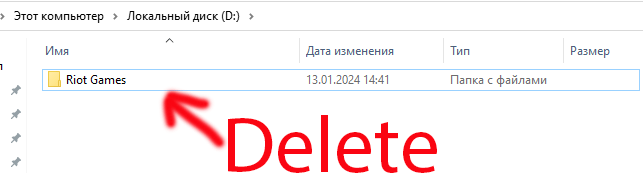
Navigate to the system disk (usually C:), then "Program Files," and delete the "Riot Games" folder.
Ensure your system registry is clear of mentions of Valorant and Riot Vanguard. You can use specialized registry cleaning tools like CCleaner for this.
 Conclusion: Reinstallation (If Needed)
If you decide to reinstall Valorant in the future, visit the official website, download the installer, and follow the instructions, or use our detailed guide on how to install the game Valorant.

This detailed guide should assist you in fully removing Valorant and its associated files from your computer. Remember to back up any necessary data and settings before uninstalling the game to avoid losing progress or other important information.