How to Set the Path for Dota 2 in Steam
Author: Hawk Live LLC
Last updated:

In the gaming world, especially among Dota 2 fans, knowing how to set the path for a game on Steam is very important.
How to Specify the Path to Dota 2
Knowing the correct path to the game Dota 2 in Steam is a critically important skill for every gamer. The standard installation path for Dota 2 on a computer usually looks like this:
C:\Program Files (x86)\Steam\steamapps\common\Dota 2
However, there are instances when the game has been moved to a different folder or a new drive has been installed. Follow these steps to correctly specify the path to Dota 2 in Steam:
Launch Steam and access the library: Open the Steam client and go to the "Library" section. Find Dota 2 in your list of games.
Select to install the game: If the system prompts you to install the game, do not skip this step. Click the "Install" button, even if the game is already installed.
Specify the new installation folder: In the window that appears, choose the exact location where Dota 2 is located. Ensure that the folder is common for all the game files.
Verify the contents of the folder: Steam will automatically check all the games located in the specified folder. Select the common folder with the game and wait for the verification to complete. After this, the "Install" button will change to "Play."
These steps will help you easily specify the path to Dota 2 in Steam and avoid potential issues with launching the game.
What to Do if Dota 2 Is Already Installed but Has Been Moved?
There are times when the game has already been installed but its folder was moved to another location. This may be due to disk space freeing up or moving to another drive.
Launch Steam and Access Your Library: Open the Library section after launching the Steam client then click on Dota 2. This will allow you detect that there is an installed game and get ready to relocate it.
Steam Will Offer to Install the Game: Do not refuse this offer; instead, click the install button. Even if the game is already installed, this is a necessary step.
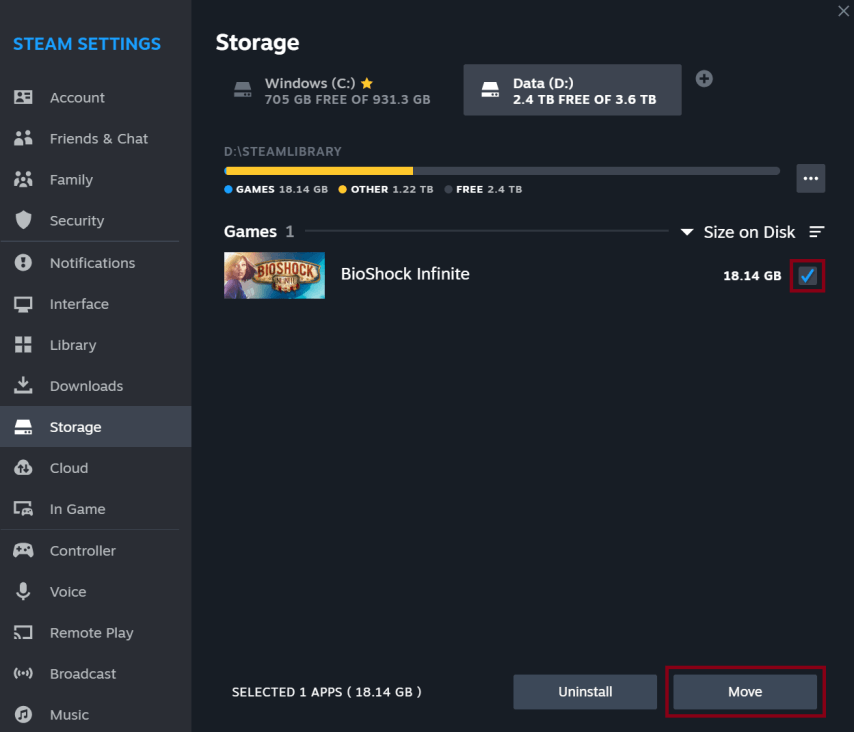
Specify the New Folder: You will see a window that lets you choose where you want to install this application. Rather than choosing “Steam” as a default folder, go directly into the place where “Dota 2” itself is located. Make sure this directory is shared among all files of games.
 Credit: Reddit/CandidAd4287
Check Folder Contents: If there are several games within one specified directory, they will be automatically detected by Steam. Be careful with selection of folders which contain games only. Once verification completes system replaces button “Install” with button “Play” and game can be launched afterwards.
How to Move Steam and Dota 2 to Another Drive?
If you need not only transfer the game itself but also steam client – follow these steps:
Exit Steam: Before moving any files, ensure that you have completely exited the client. This will prevent file corruption during the transfer.
Remove Unnecessary Files: In the Steam folder, delete all files except for steamapps, userdata, and steam.exe. This will preserve installed games and user data.
Transfer the Steam Folder: Move the entire Steam folder to a new location, such as another drive. Use the copy/paste command or any file manager to transfer the folder.
Restart Steam: After launching, Steam will check file integrity and offer to verify the games. This will ensure that all games have been correctly transferred.
How to Add Dota 2 to the Steam Library After Downloading from Another Source?
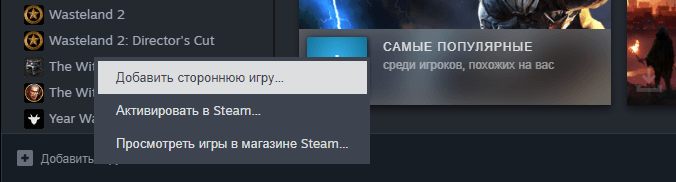
Open the "Games" Section in Steam: There is an option here to "Add a Non-Steam Game to My Library." This allows you to add not only Dota 2 but also any other games.
Credit: Tehnichka.pro
Select the Game Manually: If the game doesn't appear in the list, find its executable file and click "Open." Look for a file with a .exe extension.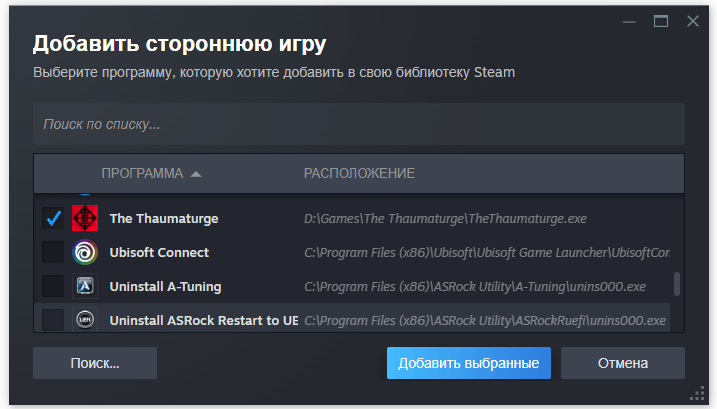 Credit: Tehnichka.pro
Add to Steam: Check Dota 2 and add it to the library to be able to play it through Steam. After that, you can launch the game directly from the Steam library.
Why Add Games to Steam?
Remote Play: Capability run the game on your personal computer while playing it though another device. This is made possible by streaming display outputs together with controls across different hardware platforms hence enabling remote game playing experience.
Library Convenience: Having all their games at one place is what most gamers prefer. It provide unified interface for starting them off which makes management easier.
Conclusion
For players, mastering Steam library management is vital, particularly when dealing with games from other origins such as Dota 2. Gamers may keep their collections in check and guarantee that they can always get to Dota 2 conveniently even if they have transferred it or reinstalled it through a different channel by applying the above procedure.