How to fix black screen in Dota 2
Author: Hawk Live LLC
Last updated:
Dota 2 is one of the world’s most popular MOBA games, with millions of players being attracted daily. However, even a game as well-designed as this can still have technical issues. One common problem is black screen at startup. In this article, we will discuss the major causes of Dota 2 black screen and suggest effective ways to fix them.
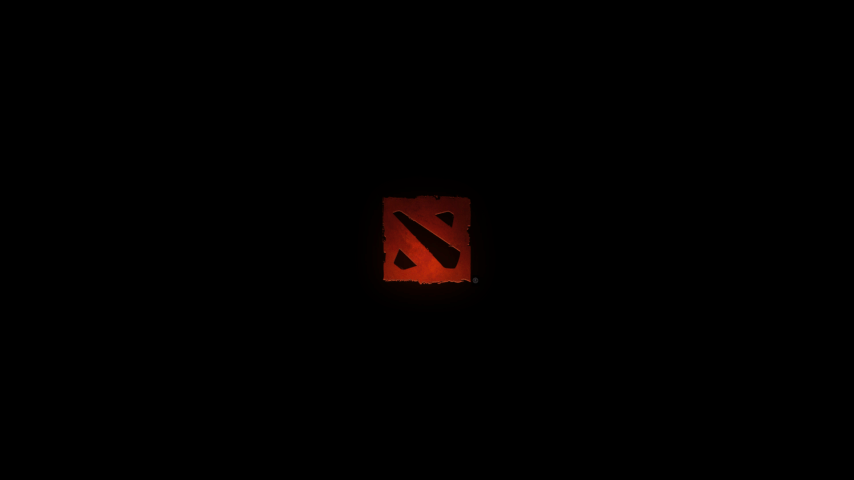 Credit: Valve Corporation
Why might a black screen appear in Dota 2?
Black screen on startup in Dota 2 may be caused by several factors. Here are the main ones:
Graphics Card Driver Issues: Outdated or corrupt graphics card drivers may make your computer show a black screen when you start Dota 2. Graphics drivers are essential for the operation of graphic cards and their coordination with game software.
Software Conflicts: Some programs working in the background might conflict with Dota 2. It could be anti-viruses, video recorders or system overclocking tools.
Errors in Game Configuration Files: Wrong game settings saved in configuration files may result in different issues during startup like a black screen.
Hardware Problems: Problems with your graphic card or other elements of your device can lead to display malfunctioning in the game.
Game File Issues : Broken or lost game files can cause black screens . This occurs because updates were not completed or done wrongly.
How to Fix the Black Screen in Dota 2?
There are several methods that can help fix the black screen issue on Dota 2 startup. Let's look at the most effective ones:
Update Graphics Card Drivers: Checking and updating your graphics card drivers to the latest version can solve the problem. Visit the official website of your graphics card manufacturer (NVIDIA, AMD, Intel) and download the latest drivers.
Disable Conflicting Software: Try temporarily disabling antivirus programs and other utilities running in the background. If this solves the problem, configure exceptions for Dota 2 in these programs.
Reset Game Settings: Resetting the game configuration files can help. You can delete the dota2.cfg file or start the game with the -autoconfig launch parameter.
Verify Game File Integrity: In Steam, you can verify the integrity of the game files. Go to your library, right-click on Dota 2, select "Properties," go to the "Local Files" tab, and click "Verify Integrity of Game Files."
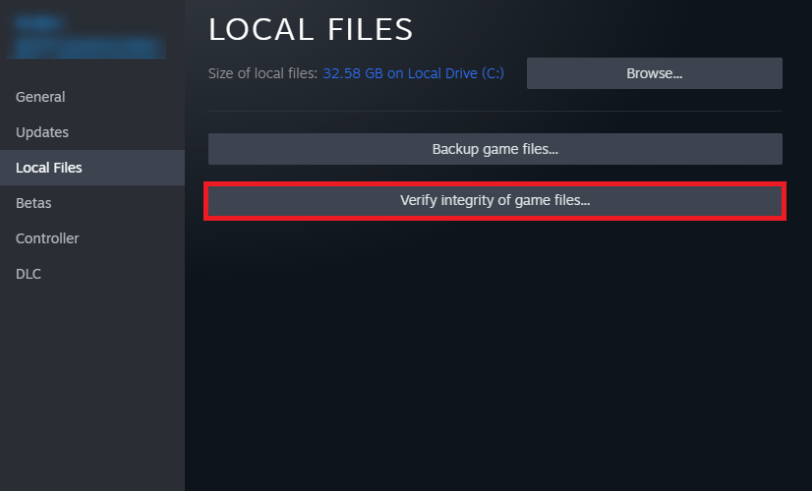 Credit: Valve Corporation
Use Launch Options: Adding launch options can help fix the issue. Try adding -safe or -dx9 to the launch options to start the game in safe mode or with DirectX 9.
Conclusion
The black screen on Dota 2 startup is a frustrating problem that can often be fixed independently by following simple recommendations. Update drivers, disable conflicting software, reset game settings, and verify file integrity – these are not too difficult ways to get back into the game. If you keep having this problem however you may want to contact Valve’s technical support or bring your PC for repairs.