How to enable FPS counter in CS2
Author: Hawk Live LLC
Last updated:
CS2 is a team-based game, so stable gameplay is crucial for winning matches. One of the key performance indicators in this shooter is FPS - frames per second. The higher this indicator, the smoother the gameplay will be. Conversely, low FPS can cause the game to lag and even freeze, negatively impacting the gaming experience.
Therefore, it's crucial to monitor FPS in a team shooter like Counter-Strike 2 to avoid letting teammates down. To do this, there is special FPS counter that allows you to track this indicator during gameplay.
How to check FPS in CS 2
First of all, it's worth noting that for users who have been playing shooters since CS:GO, Valve has prepared a surprise. The developers decided to remove the old command "Net_graph 1," which allowed you to enable the FPS counter. Now, to check FPS, you need to use a different command, but this requires a few steps.
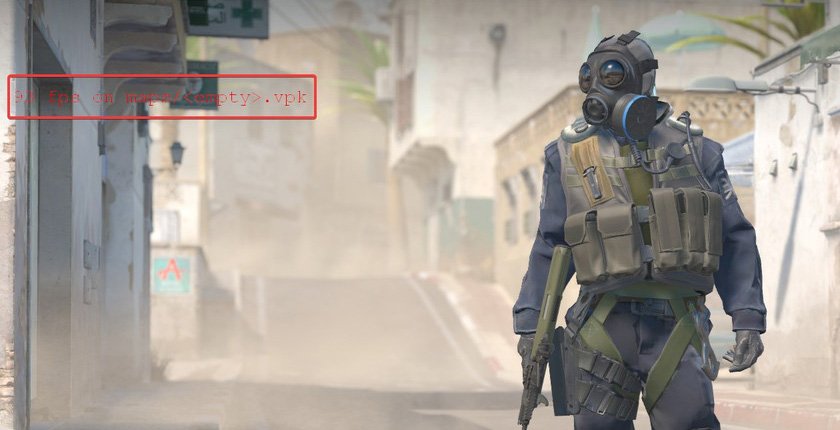
Activate the developer console in CS2
Usually, this feature is disabled by default, so you'll need to go to the settings. Find the "Enable developer console "~" option and select "Yes" from the drop-down menu. After that, you can open the console by pressing the "~" key at any time.

Enter the command to activate the FPS counter in CS 2
Three commands have replaced Net_graph, which you need to enter after pressing the "~" key. It's worth mentioning that these commands have different effects, and to avoid cluttering the screen, it's better to use only one of them at a time.
cl_showfps 1 - Entering this command will display the FPS counter in the upper left corner of the screen, but it may overlap part of the minimap.
cl_showfps 2 - This command shows FPS and current ping.
cl_showfps 3 - This command shows tickrate (the frequency at which the server updates game data) and latency.
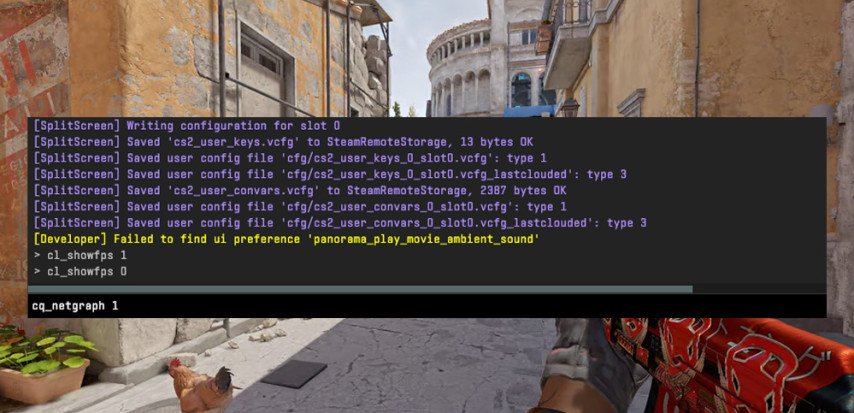
Bind to enable the FPS counter in CS2/
It's worth noting that you'll need to repeat the process of activating the counter each time you enter the game. Therefore, for convenience, you can bind this command to a separate key, allowing you to open the counter with just one press. To do this, enter a separate command in the developer console as shown in the previous step.
bind "m" "toggle cl_showfps 0 1" - This command creates a bind for the FPS counter. Instead of "m," you can enter any convenient key.
After that, every time you enter the game, pressing the bound key will display the FPS counter.

How to increase FPS in CS2
Low FPS negatively affects the gaming experience and can even lead to defeat in matches. It's important to keep an eye on this indicator. Usually, the frame rate should not drop below 30 or even 60 FPS. If the counter shows a decrease in this indicator, you should try to address the issue. Here are some ways to do this:
Decrease the graphics quality and game resolution.
Close all background programs consuming resources.
Update graphics card drivers and other components.
Check the condition of the hard drive or SSD and free up space.
Update the Windows operating system to eliminate unnecessary tasks.