How to Change Bot Difficulty in Counter-Strike 2
Author: Hawk Live LLC
Last updated:

CS2, also known as Counter-Strike 2, is a more polished version of the previous edition Counter-Strike: Global Offensive (CS:GO). In CS2, one of the most helpful features for both beginners and veteran players is the option to change bot difficulty. This function is important for those who want to perfect their skills before taking part in competitive matches. This article provides a detailed guide on how to change bot difficulty in CS2, ensuring players can find the right level of challenge.
Bot Difficulty in CS2
Artificial players or bots in CS2 can participate in various game modes so that they provide an analogous competition to humans. These bots have different levels of difficulty that allow everyone from amateurs to professionals to be able to train accordingly. Whether you’re starting out and need just the basics or you are experienced and want quicker reflexes; changing your bot difficulty settings makes your training better.
How to Adjust Bot Difficulty
Before, changing the bot difficulty was very simple as it could be done from the main menu of CS:GO only. With this new version however, it has become a little bit complicated requiring few steps.
 Credit: Valve Corporation
Here’s how you can adjust the bot difficulty:
Enable the Developer Console: First, ensure that the developer console is active in your settings. Navigate to the game settings and set “Enable Developer Console” to “Yes.”
Launch a Practice Game: Start CS2 and select “Play.” Choose "Practice" mode, then pick a map to load.
Open the Console: Once in the game, open the developer console using the tilde (~) key.
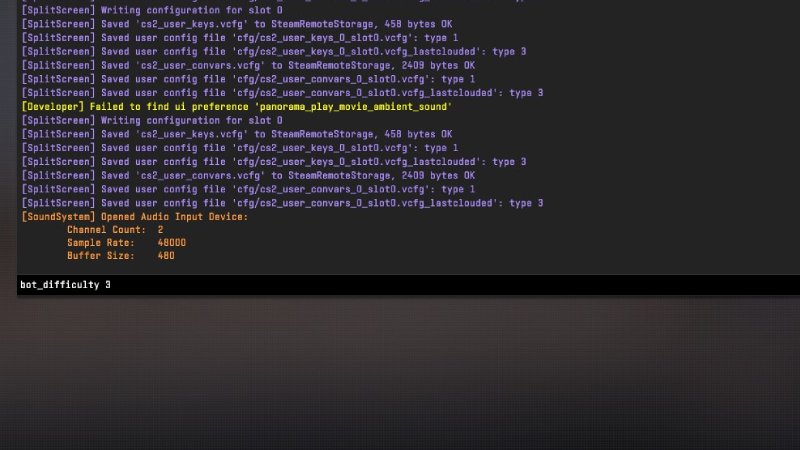
Enter the Commands: To change the bot difficulty, type the following commands into the console:
bot_difficulty [number]: Replace [number] with a value from 0 to 5, where 0 is the easiest and 5 is the most challenging.
custom_bot_difficulty [number]: This should be the same number as the bot_difficulty to ensure consistency.
Exit and Start Your Game: After setting the desired difficulty, you can exit the practice game and enter the game mode you wish to play. This setting remains effective for the duration of your play session.
Bot Difficulty Levels
Here's what each bot difficulty level signifies:
0: Bots are non-combative.
1: Bots are easy to defeat.
2: A slight increase in difficulty.
3: Bots are moderately challenging.
4: A tough challenge.
5: Extremely difficult, suitable for advanced players.
How to Add and Manage Bots
 Credit: Valve Corporation
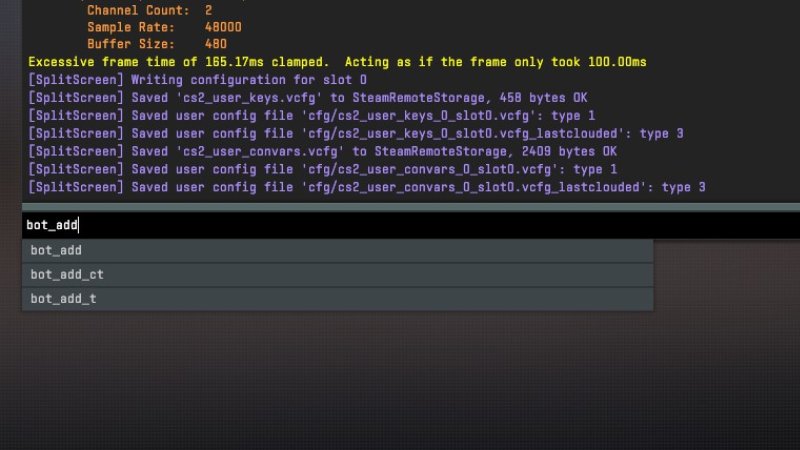
To further customize your practice sessions, you can also manage the number of bots:
bot_add: Adds a bot to a random team.
bot_add_ct: Adds a bot to the Counter-Terrorists.
bot_add_t: Adds a bot to the Terrorists.
bot_kick: Removes all bots from the game.
bot_place: Places a bot at your location, but requires cheats to be enabled.
Conclusion
This is an excellent way that really allows players in CS2 to adjust their practices based on their levels. Beginners will learn by doing while experts will keep themselves sharp through this feature. By following these steps, gamers can effectively control the behavior of their bots for improved practice outcomes. In order to maximize your gaming experience, whether it’s warming up for competitive matches or just chilling out with some games; understanding how to manipulate bot difficulty in CS2 is very important.