Is Dota 2 Freezing During Map Loading? Find Out How to Fix It Fast
Author: Hawk Live LLC
Last updated:
Many players of the Dota 2 game have faced the issue of the game hanging at the map loading. This is a not only an annoying gameplay issue but may also result in loss of ranking and temp bans. This article will address the major problems contributing to this issue and suggest some working remedies to make your match as seamless as possible.
 Credit: Valve Corporation
Possible Causes of Freezing During Map Loading
Game File Issues
Corrupted or Missing Files: Incorrect installation of updates or download errors can damage game files.
Modifications and Add-ons: Installing third-party mods may cause conflicts with core game files.
Hardware Limitations
Insufficient RAM: Dota 2 requires a certain amount of RAM for stable operation.
Overheating Components: Extended PC use without proper cooling can lead to freezes.
Driver Problems
Outdated Graphics Card Drivers: Older driver versions may be incompatible with the current game version.
Conflicts with OS Updates: New Windows or other OS updates can cause incompatibility issues.
Software Conflicts
Antivirus Software: Some antivirus programs may block important game files.
Background Applications: Programs running in the background can consume resources and cause freezes.
What to Do If Dota 2 Freezes While Loading the Map
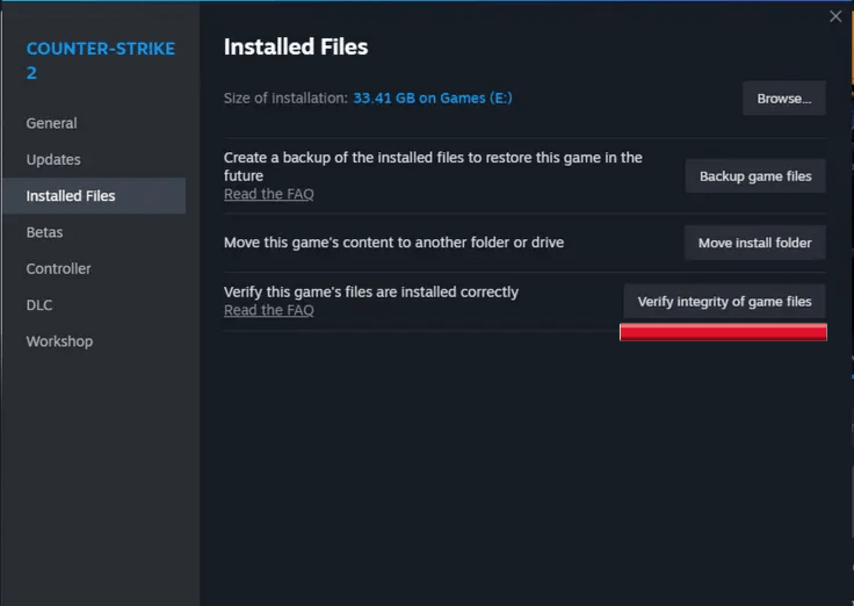
Check the Integrity of Your Game Files
Step 1: Launch Steam and head to the library of your games.
Step 2: Go to Dota 2 in your library and right-click and select the ‘Properties’ option.
Step 3: Click on the “Local Files” section and proceed to “Verify Integrity of Game Files”.
 Credit: Valve Corporation
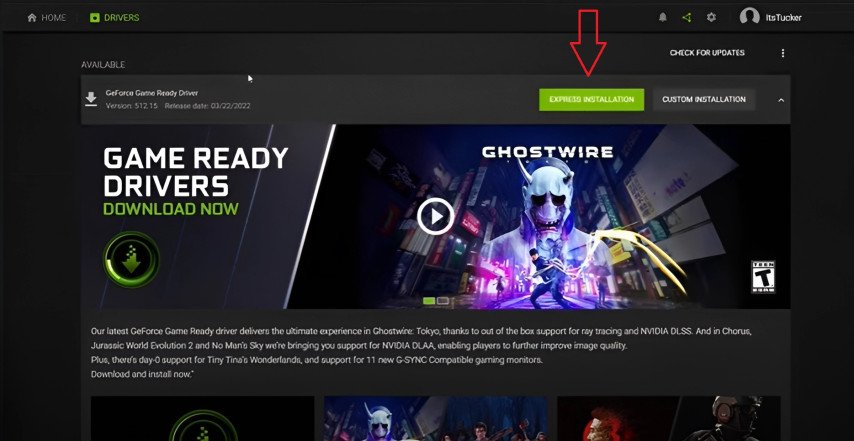
Update Graphics Card Drivers
For NVIDIA: Visit the official NVIDIA website and download the latest drivers.
 Credit: Nvidia
For AMD: Go to the AMD website to download updates.
For Intel: Use the Intel Driver & Support Assistant for automatic updates.
Disable Unnecessary Programs
Close Background Applications: Use Task Manager to end processes consuming significant resources.
Turn Off Overlays: Applications like Discord or GeForce Experience overlays may cause conflicts.
Update Your Operating System
Windows Update: Ensure all updates are installed.
Other OS: Check for updates specific to your operating system.
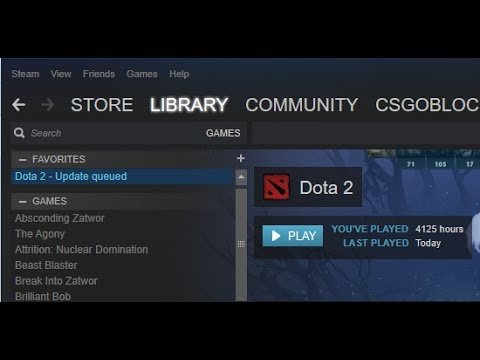
Install the Latest Dota 2 Updates
Credit: Valve Corporation
Automatic Updates: Make sure Steam is set to automatically update the game.
Reinstallation: As a last resort, completely uninstall and reinstall the game.
Scan for Viruses and Malware
Antivirus System: An efficient antivirus is supposed to block threats and scans the system.
Delete The Potential Threats: Any blocked or unrecognized files allegedly threatened will need to be deleted as the antivirus has stated.
Contact Technical Support
Community Forums: Other people may have had that problem too and solved it.
Steam Support: Use the green icon to create a support ticket, which should explain the issue in detail.
Conclusion
A common problem that Dota 2 players experience is when the application freezes while loading the map, but there are plenty of methods to deal with it. If you follow up the solutions described above, the functionality of the game can be restored and the most loved game can be played uninterrupted. One should also keep in mind that regular updating of the computer hardware and software can avoid these issues again.