Deadlock Launch Options: How to Boost FPS and Enhance Performance
Author: Hawk Live LLC
Last updated:
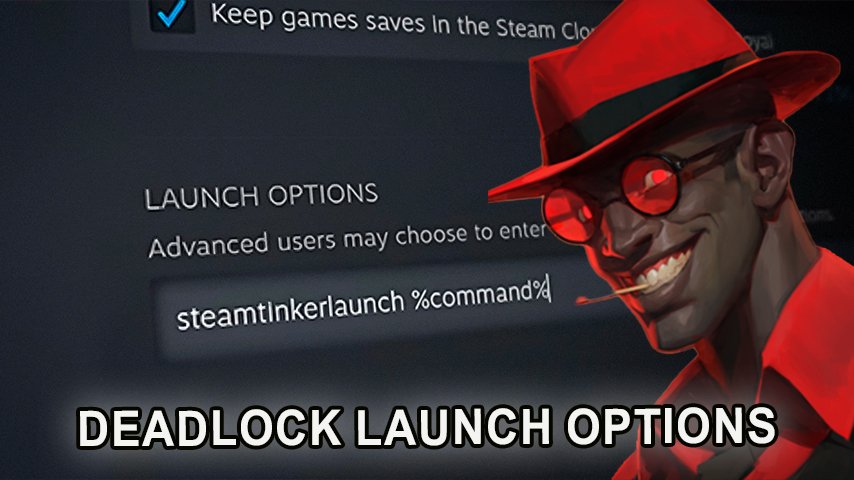
Deadlock is a dynamic shooter where every millisecond counts. To achieve maximum efficiency in the game, it's essential to ensure stable and high FPS (Frames Per Second). Deadlock's launch options allow you to optimize the game according to your computer's capabilities.
Enhancing FPS with Launch Options
A high FPS ensures smooth gameplay and instant response to player actions. Here's how you can increase Deadlock's performance:
How to Set the Launch Options
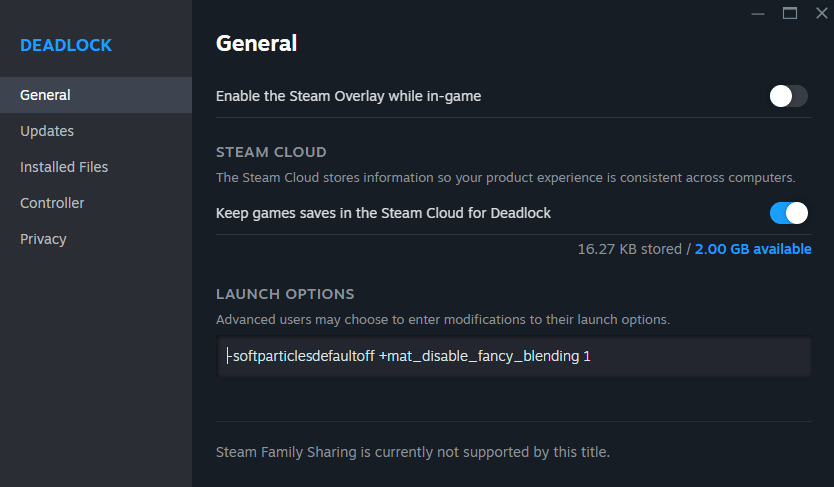 Credit: Valve Corporation
Open Launch Options:
In the Steam library, right-click on Deadlock and select "Properties".
Under the "General" tab, find the "Launch Options" field.
Enter the Launch Commands:
Paste the following commands into the field:
-m_rawinput 1 +exec autoexec.cfg -console -noassert +@panorama_min_comp_layer_cache_cost_TURNED_OFF 256 -convars_visible_by_default -high -dev -preload -fullscreen
Top Launch Options Parameters for Deadlock
Parameter | Description |
|---|---|
-m_rawinput 1 | Improves mouse responsiveness. |
+exec autoexec.cfg | Executes additional settings from the autoexec.cfg file. |
-console | Enables the developer console. |
-noassert | Disables assertion checks to boost performance. |
-high | Sets the game's process priority to high. |
-dev | Activates developer mode for additional settings. |
-preload | Preloads necessary resources. |
-fullscreen | Launches the game in fullscreen mode. |
-novid | Skips the intro video on game launch. |
+citadel_display_new_player_recommendations 0 | Disables recommendations for new players. |
+citadel_region_override x | Selects the server region (replace x with the region number). |
Important
After making these changes, do not adjust the graphics settings within the game. Doing so may reset your configurations, and you'll need to repeat the setup process.
Disabling "Recommended for New Players" Banners
To achieve a cleaner interface and reduce distractions, you can disable the tutorial banners:
Add the Following to Launch Options:
-novid +citadel_display_new_player_recommendations 0
Explanation of Parameters:
-novid — Skips the intro video on game launch.
+citadel_display_new_player_recommendations 0 — Disables recommendations for new players.
Selecting a Server Region
If you prefer playing on servers in a specific region, you can specify this in the launch options:
Add the Command:
+citadel_region_override x
Replace x with the number corresponding to your desired region:
x | Region |
|---|---|
-1 | Automatic selection |
0 | North America |
1 | Europe |
2 | Asia |
3 | South America |
5 | Oceania |
Finished string to be inserted into Steam launch options
To optimize performance in Deadlock, here's a ready-made string to insert into Steam's launch options:
-m_rawinput 1 +exec autoexec.cfg -console -noassert -high -dev -preload -fullscreen -novid +citadel_display_new_player_recommendations 0 +citadel_region_override x
Conclusion
Optimizing Deadlock through launch options is an effective way to enhance game performance and improve your gaming experience. Following these recommendations can achieve a more stable FPS and allow you to tailor the game to your preferences.