How to Create, Edit, and Share Custom Hero Builds in Deadlock
Author: Hawk Live LLC
Last updated:
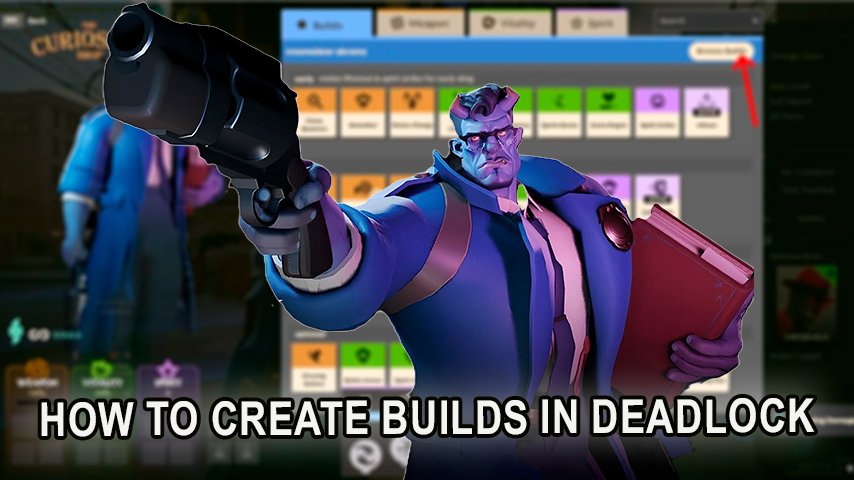
Deadlock, Valve's latest addition to the MOBA genre, has taken the gaming community by storm with its unique mechanics and deep strategic gameplay. One of the standout features of Deadlock is the ability for players to create and share custom builds for their favorite heroes. This not only enhances the gameplay experience but also fosters a collaborative community where strategies and tactics evolve constantly. Here's a step-by-step guide on how to create, edit, and share your own builds in Deadlock.
Why Create Custom Builds?
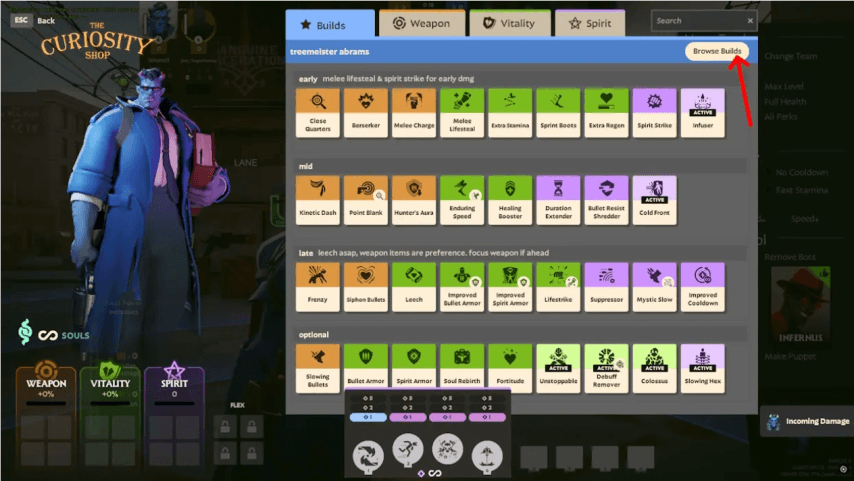 Credit: Valve Corporation
Creating custom builds allows you to:
Streamline Item Purchases: Pre-determine items in a quick-build section to avoid searching during intense matches.
Optimize Hero Performance: Tailor your hero's abilities and items to suit your playstyle.
Share Strategies: Contribute to the community by sharing effective builds.
How to Create a Build in Deadlock
Step 1: Enter Sandbox Mode
Select Your Hero: From the main menu, navigate to the Heroes tab and choose the hero you wish to create a build for.
Access Sandbox Mode: Click on the Try in Sandbox option to enter a practice environment with your selected hero.
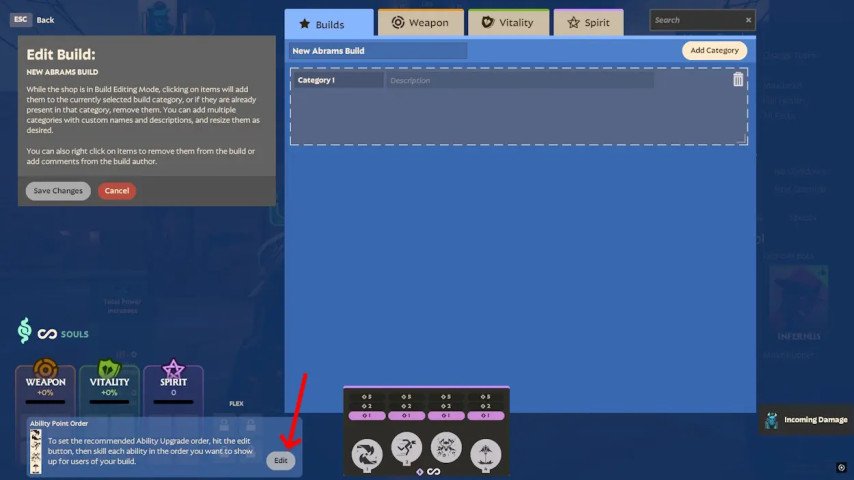
Step 2: Create the Build
 Credit: Valve Corporation
Open the Curiosity Shop: Press the B key to access the shop interface.
Browse Builds: Click on the Browse Build option located at the top right corner.
Create New Build: On the left side, select Create New Build.
Name Your Build: Give your build a unique and memorable name.
Add Categories: Click on Add Category to organize items (e.g., Early Game, Core Items, Situational).
Add Items:
Navigate through the Weapon, Vitality, and Spirit tabs.
Click on an item to add it to your build.
Drag and drop items into the appropriate categories.
Save Your Build: Once satisfied, click Save Changes on the left side.
How to Edit Your Build in Deadlock
Adjust Categories: Resize or rename categories for better organization.
Modify Items: Add or remove items as you refine your strategy.
Set Ability Point Order:
Click the Edit button next to Ability Point Order.
Select the sequence in which you prefer to unlock or level up abilities.
Save the changes to receive in-game suggestions during matches.
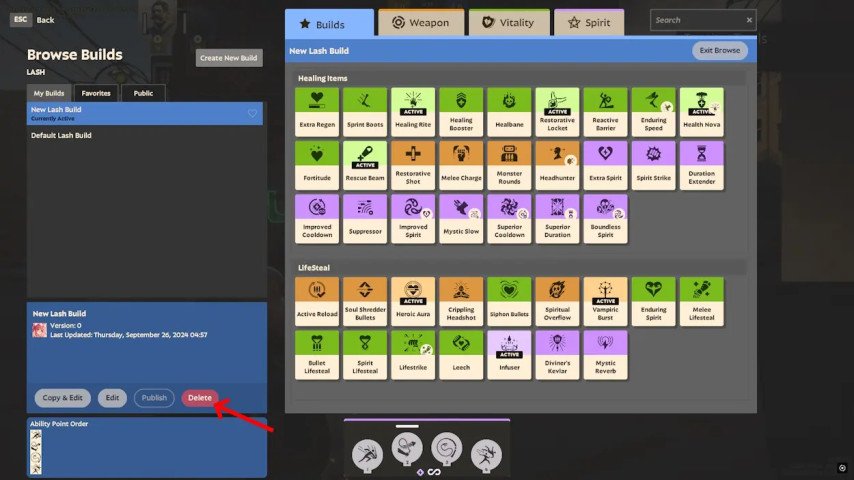
How to Delete Build
 Credit: Valve Corporation
Access Builds: Open the Curiosity Shop and select Browse Build.
My Builds: Navigate to the My Builds tab.
Select and Delete: Choose the build you wish to remove and click the Delete button at the bottom.
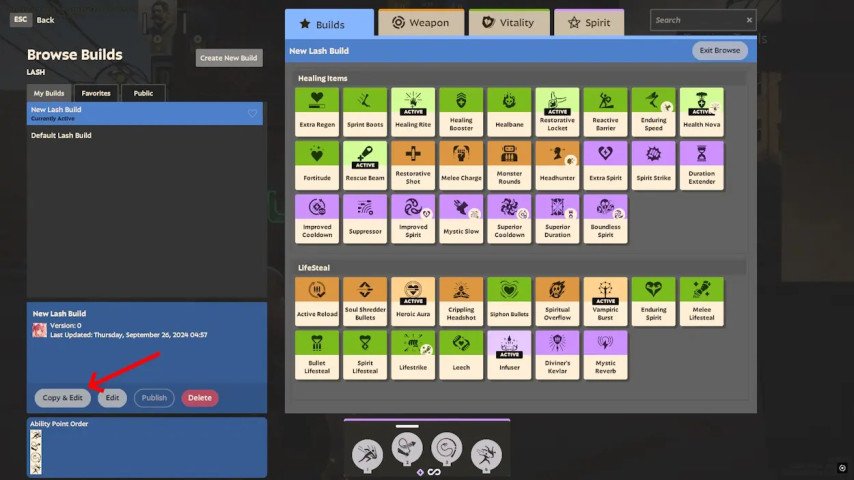
How to Copy and Edit Existing Builds
 Credit: Valve Corporation
If you're looking for inspiration or want to tweak an existing build:
Browse Public Builds: In the Browse Build menu, go to the Public tab.
Select a Build: Choose a build that interests you.
Copy and Edit: Click on Copy and Edit to make your modifications.
Save Your Version: After editing, save the build under a new name.
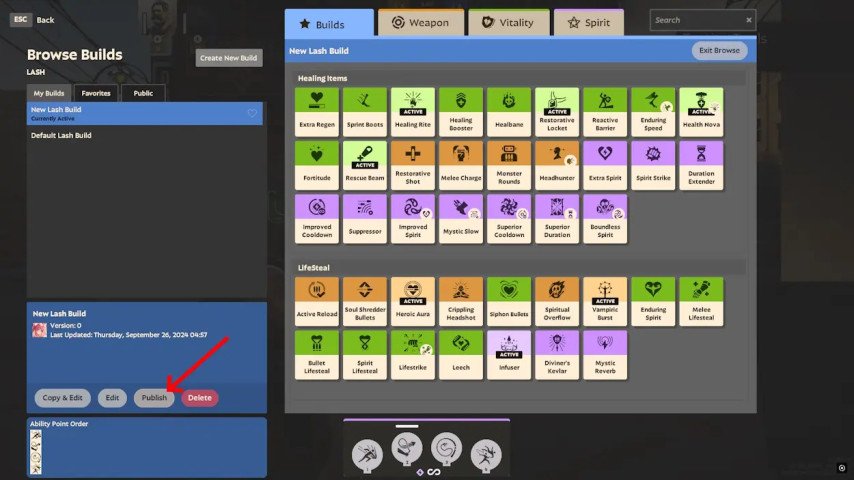
How to Share Your Build
 Credit: Valve Corporation
While there isn't a direct share or export function, you can make your build accessible to others:
Publish Your Build: After creating your build, click the Publish button to make it public.
Unique Naming: Ensure your build has a unique name for easy searching.
Inform Your Friends: Share the name of your build so others can find it in the public builds section.
Tips for Effective Builds
Organize Thoughtfully: Categorize items based on game phases (early, mid, late) or situations.
Keep It Simple: Avoid overcomplicating your build to maintain clarity during gameplay.
Plan for Resources: Calculate the total soul cost for your full build to manage in-game economy.
Detailed Descriptions: Add notes or descriptions for each category to assist in situational decisions.
Ability Recommendations: Utilize the Ability Point Order to guide yourself or others on optimal ability progression.
Conclusion
Creating and customizing builds in Deadlock not only enhances your personal gameplay but also contributes to the evolving meta of the game. Whether you're a seasoned player looking to fine-tune your strategies or a newcomer eager to learn from the community, the build system is an invaluable tool. So dive into Sandbox mode, experiment with different item combinations, and share your creations with the world.
Custom hero builds in Deadlock allow players to personalize their playstyle for maximum efficiency. If you want to master item selection for your builds, read our detailed item guide, which explains all item categories and their effects. Additionally, understanding the Curiosity Shop will help you make better purchasing decisions to enhance your builds even further.