Best Deadlock Settings for Low-End PCs
Author: Hawk Live LLC
Last updated:
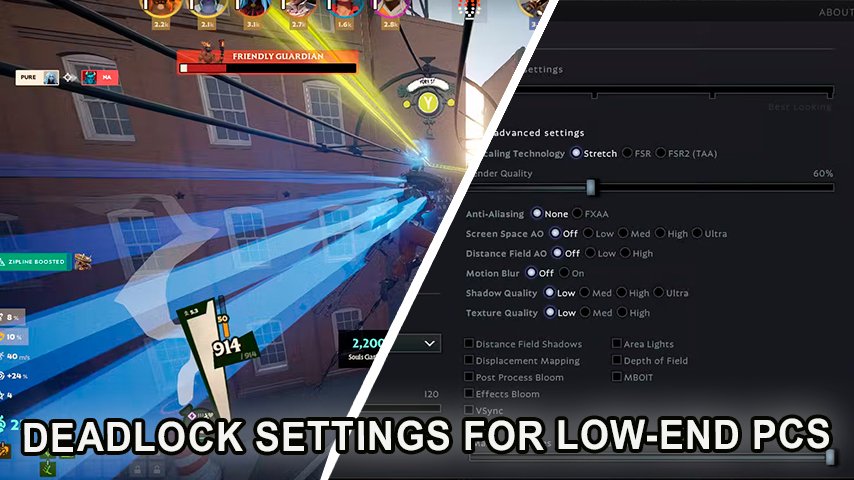
Deadlock, Valve's new hybrid shooter-MOBA, has quickly gained attention among competitive players. However, like many games in their early stages, Deadlock poses some performance challenges, particularly for those with low-end PCs. Optimizing settings to boost FPS (frames per second) and enhance performance is crucial for players with older or less powerful systems.
 Credit: Valve Corporation
Best Deadlock Graphics Settings for Low-End PCs
Finding the balance between performance and visual clarity is essential for players using low-end systems. Thankfully, Deadlock offers a range of graphical settings that can be adjusted to improve FPS and stability, even on weaker hardware.
 Credit: Valve Corporation
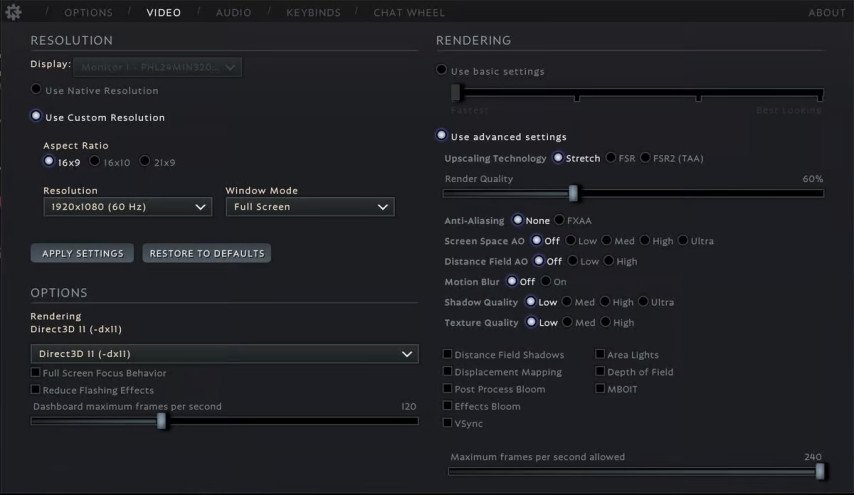
Here are the recommended Deadlock settings for players with low to mid-range PCs, focusing on maximizing FPS:
Setting | Recommended Value |
|---|---|
Resolution | Highest (native if possible) |
Aspect Ratio | 16×9 |
Window Mode | Full Screen |
Rendering | Direct3D 11 (-dx11) |
Full-Screen Focus Behavior | Off |
Reduce Flashing Effects | On |
Upscaling Technology | FSR2 (TAA) |
Scaling Mode | Performance/Balanced |
Screen Space AO | Off |
Distance Field AO | Off |
Motion Blur | Off |
Shadow Quality | Low |
Texture Quality | Low |
Distance Field Shadows | Off |
Area Lights | Off |
Displacement Mapping | Off |
Depth of Field | Off |
Post Process Bloom | Off |
MBOIT | Off |
Effects Bloom | Off |
VSync | Off |
Applying these settings can significantly boost your FPS, achieving smoother gameplay even on lower-end hardware. The focus here is reducing the demand on your system’s GPU and CPU, which helps stabilize your FPS during intense firefights and team battles.
System Adjustments for Improved Gameplay
In addition system settings optimization can greatly enhance Deadlock experience Here are some alterations to consider:
Power Options: If you've tried all the in-game settings and still face issues, consider adjusting your PC's power options. By selecting the "Higher Performance" option in the Windows Power Options settings, you can prioritize performance over energy conservation. This could enable your system to run the game more smoothly, though it will consume more energy.
Turn Off Background Apps: Applications running in the background can consume RAM and reduce your game's performance. It's recommended to close any unnecessary apps before playing. Additionally, disabling the Steam in-game overlay can potentially improve your gameplay experience.
Verify the Integrity of Game Files: Sometimes, corrupt files in your system may cause crashes and gameplay dysfunctions. This issue can be easily resolved by verifying the integrity of game files in your Steam Library. Steam will verify the game files and replace any corrupted files, potentially fixing game crashing or stuttering.
Additional Tips for Improving Deadlock Performance
Beyond tweaking in-game settings, there are a few additional steps players can take to enhance performance:
Disable Unnecessary Visual Effects: Deadlock’s default settings include visual effects such as shadows, depth of field, and particle effects. While these can add to the game's aesthetic, they are also resource-heavy. Lowering or disabling them can provide an immediate performance boost.
Update GPU Drivers: Ensure your graphics drivers are up to date. Outdated drivers can cause performance issues, especially in newer games like Deadlock.
Modify Configuration Files: For advanced users, modifying Deadlock’s configuration files can unlock further performance optimizations. As mentioned by the community, using custom configurations such as w0nxyApex’s can help disable features like shadows and unnecessary particles, giving you a significant FPS boost.
Use Console Commands: For those comfortable with console commands, Deadlock allows players to adjust settings directly in-game. Some useful commands include:
fps_max_ui 30 to limit FPS to reduce GPU strain.
cl_ragdoll_limit 0 to disable ragdoll effects, reducing processing load.
Launch Options Tweaks: Add specific commands in the game’s launch options for further optimization. For example, adding -m_rawinput 1 +exec autoexec.cfg -console helps stabilize input response and further boosts FPS.
How to Optimize PC for Deadlock
Optimizing your computer can significantly improve your gaming experience especially when playing Deadlock on weaker PCs. The following are a few more ways to increase PC performance during Deadlock:
Update Drivers: Ensure that you have the latest drivers for your graphics card. Updating drivers can improve compatibility with the game and boost performance.
Clear Hard Drive Space: Make sure you have sufficient free space on your hard drive. Clearing temporary files and uninstalling unnecessary programs can help free up space.
Optimize RAM: Close background applications that may use up RAM. Consider adding more RAM if possible for a performance boost.
Run Anti-Virus Scans: Malware and viruses can impact PC performance. Regularly scan your computer for viruses and malware.
Adjust BIOS/UEFI Settings: In rare cases, tweaking settings in the BIOS/UEFI may impact performance. Be cautious, as changing these settings requires knowledge.
Optimize Internet Connection: Ensure your internet connection is stable. Occasionally restarting your router and modem can help.
Regular Updates: Keep an eye out for updates for both the game and your operating system. New versions may include performance improvements.
Always remember that each machine has its own features; hence not all of these tricks can help everyone equally. Experiment with different settings until you find what works best with your computer’s configuration.
Conclusion
Deadlock is still in its early development stages, meaning ongoing patches and updates will likely bring more optimizations. However, for now, these settings offer the best balance between performance and visual quality for players on low-end PCs. Following these recommendations lets you enjoy smoother, more responsive gameplay without major compromises.