CS2 to Valorant Sens: How to Transfer Sensitivity and Other Settings
Author: Hawk Live LLC
Last updated:
There are quite a few differences in how Crosshairs and control settings are vital for the success of the player, especially for first person shooters. Those who make the shift from CS2 to Valorant might struggle a bit as the mechanics and settings are not quite the same. In this article, we will talk about some important tweaks that you need to make in Valorant so that you can smoothly transition to the new game.
Mouse Sensitivity Configuration Valorant:
One of the important thing components of manage is mouse sensitivity. To make it akin to what you used in CS2, it is recommended to divide your current sensitivity from CS2 through 3.18. Also, a third-party service can help to calculate your sensitivity for Valorant or CS2 and provide it for you.
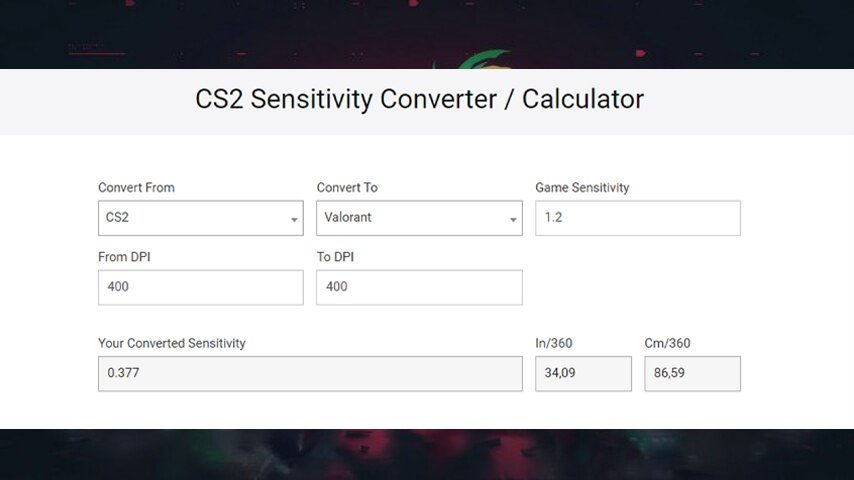 Credit GamingSmart
Utilizing Mouse Wheel for Jumping in Valorant:
Valorant player’s mouse sensitivity is one of the crucial control settlements. The procedure of adjusting mouse sensitivity is quite straightforward, and it is especially effective for CS2 players who wish to preserve some of their CS2 gameplay mechanics when playing CS2. The good thing is that some other 3rd party applications might as well give you the appropriate mouse sensitivity settings for both Valorant and CS2, you just need to search for them.
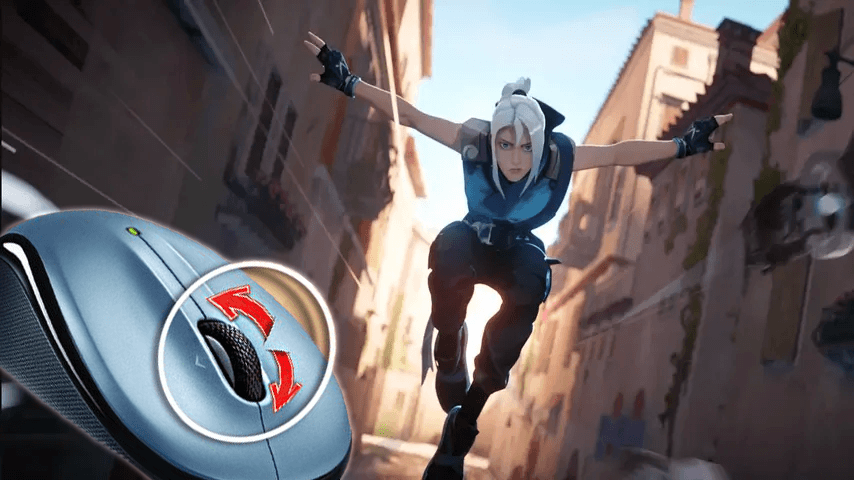 Credit: Riot Games
Adjusting Aim Down Sight (ADS) Mode:
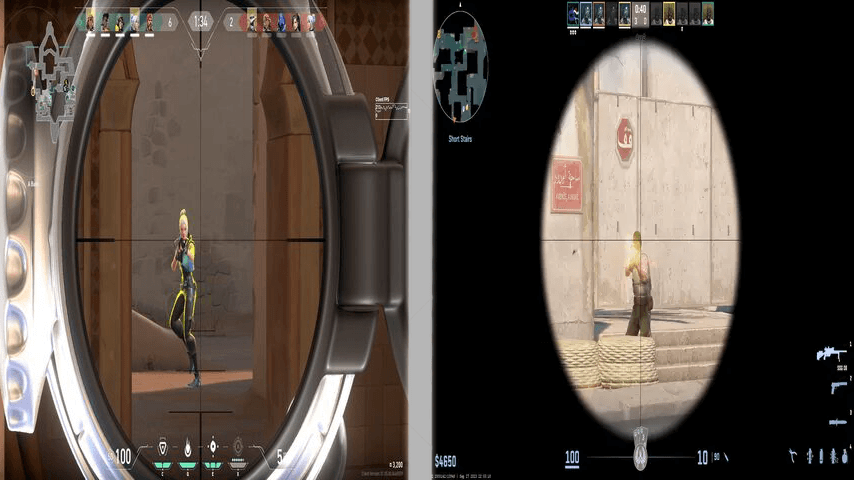
Like the previous suggestions, work on the ADS mode in such a way that you are most comfortable while aiming in Valorant like you’re used to CS2. An example is configuring switch toggles for sniper scopes.
 Credit: Riot Games | Valve Corporation
Key Binding for Ability Usage in Valorant:
For the purpose of enhancing the gameplay, it is important to apply the different skills of character played in Valorant. Trouble Free Character’s key bindings is implemented using their simple and closing capabilities.
 Credit: Riot Games
Activating Voice Chat in Valorant:
Make sure to turn on voice chat so that you can communicate verbally with your team. This will enable you to effectively plan maneuvers and processes during the game.
Using these guidelines with regard to the controls and crosshair adjusting settings in Valorant, I am sure you will succeed in adapting to the new game without forgetting your CS2 skills and behaviour patterns. Don’t forget to do some experimentation with the settings to find the most optimum parameters for your cemented playstyle. Best of luck on the arena’s of Valorant!
How to Transfer CS2 Sens to Valorant
 Credit: Riot Games
Moving your gaming sensitivity between games is essential because it unifies the experience across platforms, especially if you’re using competitive shooting games first person. If you are coming from a Counter-Strike 2 background and looking to move on to valorant while retaining a certain degree of sensitivity during your gaming, heres a few pointers that would help guide you through the transfer process:
Identify the sensitivity that you currently use: Note down the specific values of the sensitivity of the mouse or Arguably the DPI in games such as Counter-Strike 2.
Find the comparatives in Valorant. Mouse sensitivity in CS2 can be mapped to its Valorant counterpart by taking the value, and dividing it by 3.18.
Carry out the tests and changes – Ahora! It’s time to conduct the test matches. Start with a few games ( consider the number of your taste matches played around 4 or 5) after making changes to your Valorant settings to check how those new settings you devised work for you in comparison to CS2. Often, you will only need to make slight tweaks to the control sensitivity to get the exact right (preferred) sensitivity level.
The transferring of perspective between games does contain a time-demanding context, but knowing how it would work out in case of having played CS2 surely would help in making the conditions for playing Valorant much more comfortable.
CS2 to Valorant Sens: Example
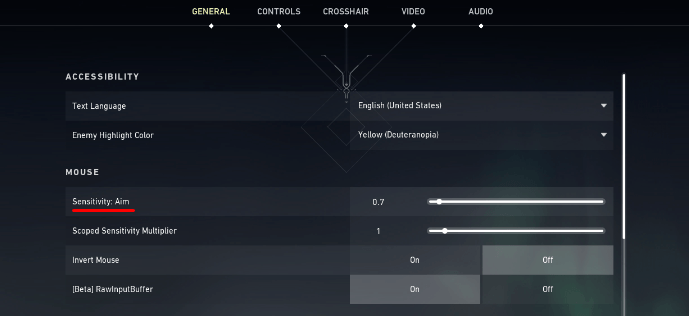
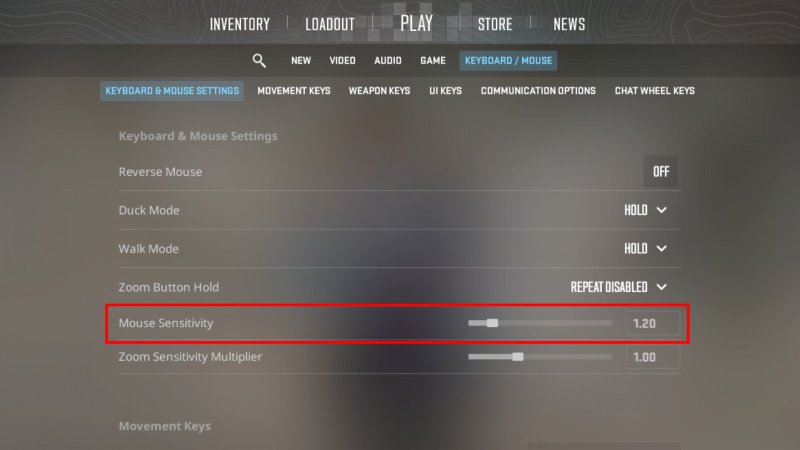
Mouse sensitivity value in CS 2 is 1.2. In Valorant, you need to set it to 1.2 / 3.18 = 0.377.
How to Transfer Valorant to CS2 Sens
 Credit: Valve Corporation
If you want the mouse sensitivity in Counter-Strike 2 to be similar to valorant then there is a different approach; for this one you need to multiply the valorant sen value by 3.18. With this you will get a control setting that feels similar in both games.
Now go to the settings and see what’s your current sensitivity in Valorant: I want the lossless mouse sensitivity numbers you so use in Valorant.
Locate identical settings in CS2: You just need to take your valorant sensitivity and multiply it by 3.18 so that you can even come close to achieving the feeling of aim in valorant and makes transferring the sensitivity to the newer game sensibly true.
Make sure to retest: After modifying the sensitivity adjustments in CS2 it is wise to play a couple of test matches or practice rounds so that you can feel how close is this adjustment with the preferences you have gotten used to in valorant. It could be that you just need slight changes here and there to attain the match.
Valorant to CS2 Sens: Example
The mouse sensitivity value in Valorant is 0.4. To get an equivalent setting in CS2, multiply this value by 3.18. The result is 0.4 × 3.18 = 1.27. This means the optimal sensitivity in CS2 should be set between 1.2 and 1.3.
By following this calculation, you can maintain your gameplay feel and seamlessly adapt when switching between the two games, which is especially important for competitive players.
Conclusion
Whether switching to valorant from some other game or returning back to cs2, setting controls, mouse sensitivity and crosshair plays a critical role in your performance. Even though these settings seem overly specific, investing the time to customize them will go a long way in helping you maintain your skills, learn the mechanics of the new game, and wherever possible, enhance your overall performance.
But if you're also transitioning from Deadlock or Valorant to The Finals, we’ve got you covered—explore our sensitivity conversion guides (Deadlock to FPS, Valorant to The Finals) to ensure smooth aiming across multiple FPS titles.