How to Set Up Autoexec in CS2 That Will Change Your Gameplay
Author: Hawk Live LLC
Last updated:

It's stunning how many levels you can change in CSS game, which is about 5 forces the other 5 team to lose. If the winning condition of the game is to kill the enemies on the small maps then, It must have plenty of options to change the configuration.
In this article, we will discuss “autoexec settings” which is one of the methods that can improve the CS2 experience if configured correctly. With autoexec, you are able to generate verbiage that will make the play more appealing to the player.
What is Autoexec in CS2?
Autoexec refers to a configuration file ( .cfg) that contains a preset of command which when the game is launched, it executes automatically. The importance of autoexec is that it helps you eliminate the tiring manual input of commands whenever you’re launching csgo autoexec in game parameters such as crosshair/save, launch parameters, and network optimization among many others.
How to Create an Autoexec file in CS2
It is extremely easy to create an autoexec since it does not put a lot of stress on the mind. Simply follow the procedure given below :
 Credit: Microsoft Corporation
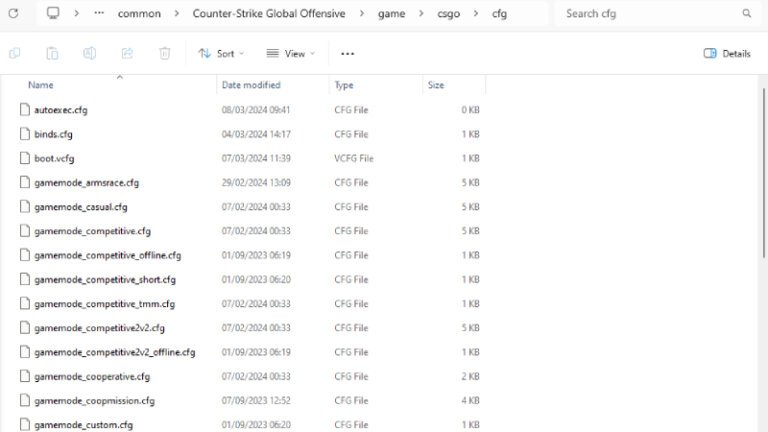
Developing autoexec file should not challenge one as it is a straightforward process that school going children should be able to accomplish. One however must take the following steps into consideration. Thank you. Open: C: \Program Files (x86)\ Steam\steamapps\common\Counter-Strike Global Offensive\game\csgo\cfg.
To start off, you will need to open Notepad, where all required commands will be entered into a file.
Make sure to save and close the file after that.
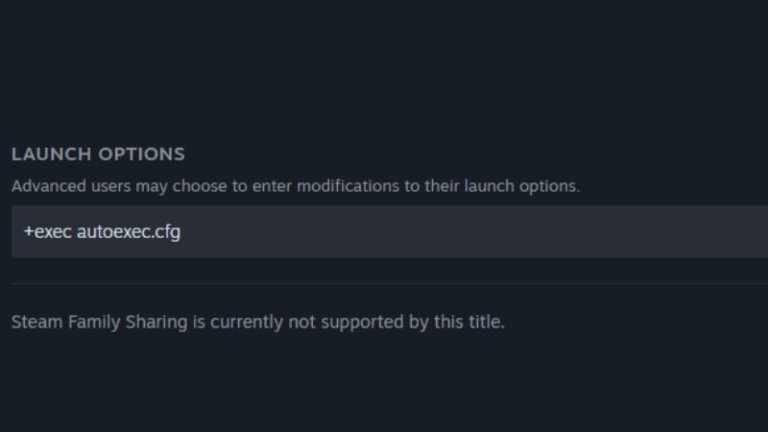
Open Steam and right-click on CS2, go to its Properties, open the tab called General, and look for a section called Launch Options.
Your written file will be run automatically with the help of the command you entered every single time you opt for CS2. The command you need to write is +exec autoexec.cfg.
 Credit: Valve Corporation
In case you run into a “can’t launch” the one file called autoexec, it’s most probable it has been misplaced. Ensure that the autoexec file is placed in the cfg folder as indicated above. Move the folder into the appropriate folder, and if the problem persists, inspect the command lines for possible mistakes and also check the file is saved in .cfg format.
Useful Commands for Autoexec in CS2
Now all of your settings will be activated automatically each time you start the game. Alternatively to that, open the console and type in exec autoexec.cfg to do it manually One other important command that you would like to use again is located in CS2 —— commands for autoexec.
Such settings could include weapon switching as well as inventory control and network optimization and many more. A lot of commands that allow achieving that are provided below.
Also, here are a few commands that worked for grenade bind buying success:
bind “e” “buy flashbang”
bind “c” “buy smokegrenade”
bind “v” “buy incgrenade”
Another command that will help you buy weapons using the store is on the jump throw bind for grenades.
Alias “+jumpthrow” “+jump;-attack” Buy Destroy Spy Construct “storehouse” Weapon in mouse 5 to throw more powerful bombs When you bind using these commands you should be able to jump towards your enemy and throw grenades at them, helping you with combat.
Fixing the “Unable to Read Autoexec File” Error
In case you receive the error 'Autoexec File Cannot Be Read' when launching the game, it is possible that the file is in the inappropriate directory. Double check whether the file is copied into the cfg folder as elaborated above. If the error persists double check for any missing syntax errors in the commands and other errors such as saving the file in the wrong type (.cfg).
How to Use Multiple Autoexec Configuration Files
 Credit: Microsoft Corporation
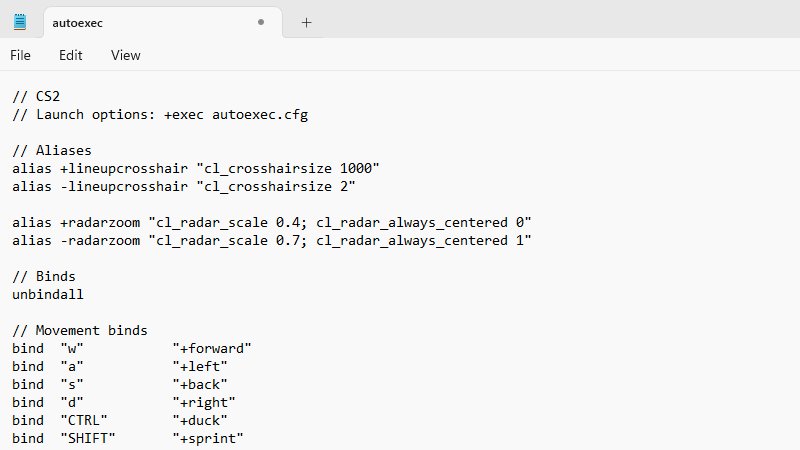
Many users prefer submitting their parameters for different situations as the user settings in the game. With that being said, one is able to create as many .cfg files as they wish and apply them if needed by using the command exec [file_name].cfg in the console.
Example of a Full Autoexec for CS2
Here is an example of a full autoexec that has every important setting which ought to ensure better gameplay for the user.
a. cl_interp "0.031"
b. cl_interp_ratio "1" rate “786432”
c. cl_cmdrate “128”
d. cl_updaterate "128"
e. bind "MWHEELUP" "slot1" //Bind Primary Weapon to mouse wheel up
f. bind "MWHEELDOWN" "slot2" //Bind secondary weapon to mouse wheel down
g. bind "mouse5" "+jumpthrow" //Bind a hotkey, which is mouse5 for jump throw of grenades.
h. viewmodel_fov “68” //set field of view for wider vision.
i. viewmodel_offset_x "2" //set model offset scaling.
j. viewmodel_offset_y "2"
k. viewmodel_offset_z "-2"
Conclusion
“autoexec” in CS2 is a useful function which allows players to set scripts to key binds to optimize their gameplay exactly how they want it to be. There isn’t just comfort that comes from this configuration, but also an advantage in the presence of faster and more precise movements. You can return to this guide to remind you the basic autoexec commands and options which will help you to improve your results in the game.