How to fix "VAC could not validate your game session" error in CS2
Author: Hawk Live LLC
Last updated:
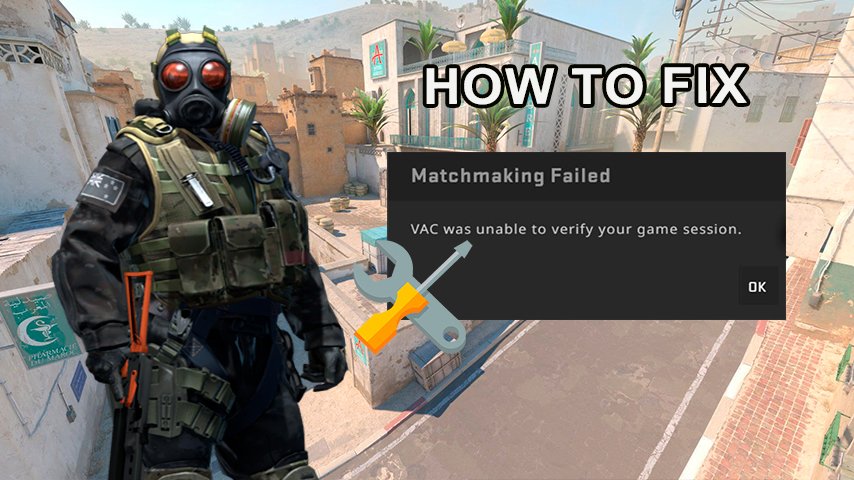
The issue of "VAC was unable to verify your game session" in CS2 leaves many players perplexed. Unfortunately, there is no single easy fix for this error, so it will require some time for testing. However, there are several possible solutions available today.
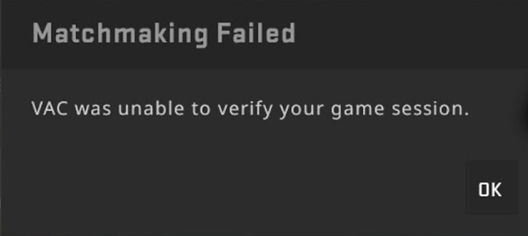
Credit: Valve Corporation
What Causes the Error
The "VAC Was Unable to Verify the Game Session" error can occur due to various reasons, including technical glitches, software conflicts, and networking issues. In most cases, this is related to the improper functioning of the Valve Anti-Cheat (VAC) system, which fails to confirm the game session. This could be triggered by third-party software, corrupted game files, or networking problems.
How to Fix the Error
Fixing the "VAC Was Unable to Verify the Game Session" error in CS2 can be achieved by restarting the game, checking file integrity and rebooting the computer. Additionally, some users have been helped by deleting the CS2 executable before rechecking the game's file integrity in Steam.
Solution 1: Game Restart, File Verification, and PC Restart
One of the most common ways to resolve the "VAC was unable to verify your game session" problem in CS2 is to restart the game, verify the integrity of game files, and/or reboot the computer. To verify game files in CS2, follow these steps: Open Steam -> Library -> Counter-Strike 2 -> Right-click on the name -> Properties -> Installed Files -> Verify integrity of game files. Additionally, some users have found success by deleting the CS2 executable file and then verifying the integrity of game files.
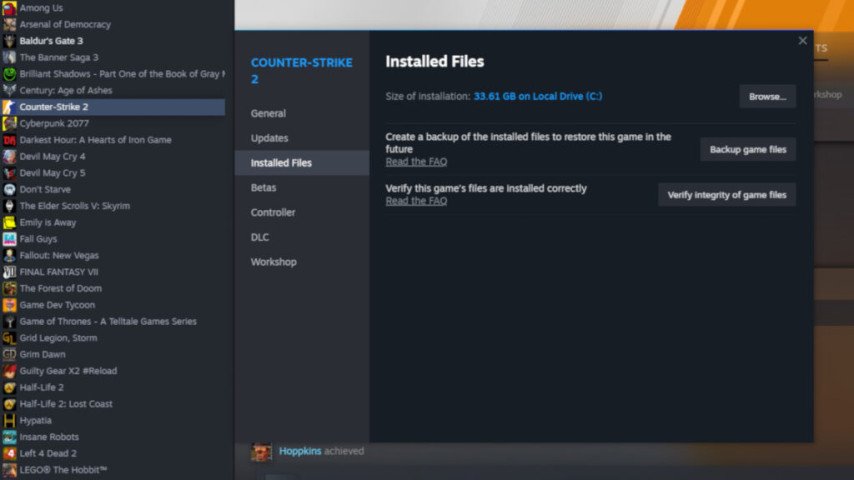 Credit: Valve Corporation
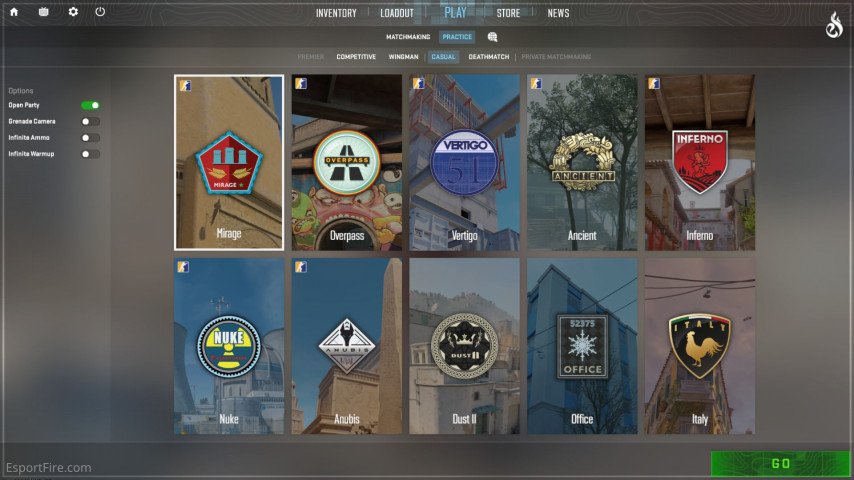
Solution 2: Bot Practice
 Credit: Valve Corporation
For many users who couldn't resolve the issue using the aforementioned recommendations, employing the following steps proved effective:
Bot Practice: Connecting to the game with bots in offline mode and playing for 5-10 minutes. Launching the game in a mode where computer-controlled bots replace real players and engaging in a gaming session for a brief period. This can assist the VAC system in verifying the game session.
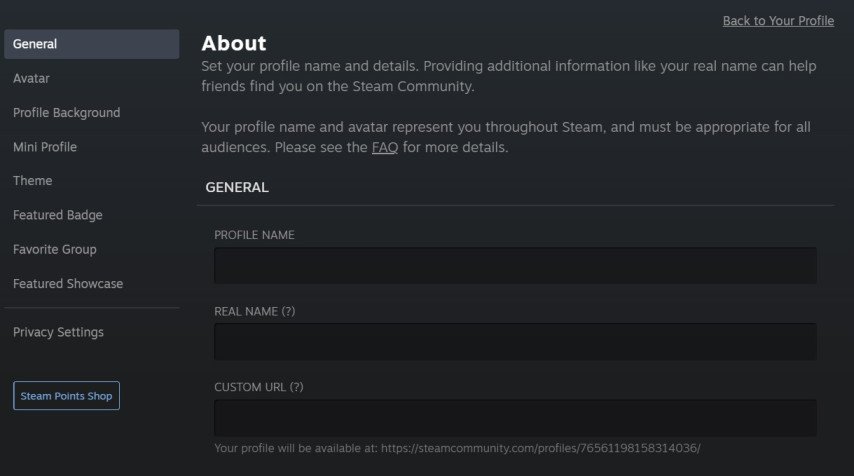
Solution 3: Steam Name Change
 Credit: Valve Corporation
Some users suggest changing their name within the Steam client before attempting to reconnect. This action might reset certain temporary settings or configurations associated with the user account.
Solution 4: Running as Administrator
Launching CS2 as Administrator: In some cases, launching the game with administrator privileges can help bypass issues related to accessing files or computer resources.
Launching Steam as Administrator: Similar to the previous option, launching the Steam client with administrator privileges may provide the necessary permissions and resources for the game and its anti-cheat system to function correctly.
These actions may aid in resolving the "VAC was unable to verify your game session" error in CS2 for users for whom more general troubleshooting methods didn't work.
Conclusion
We hope that one of the solutions mentioned above helped you resolve the "VAC was unable to verify your game session" error, allowing you to continue playing our beloved CS2. If the issue persists, patience may be necessary, as the error often resolves itself the following day.