How to Change Camera Settings in Dota 2
Author: Hawk Live LLC
Last updated:
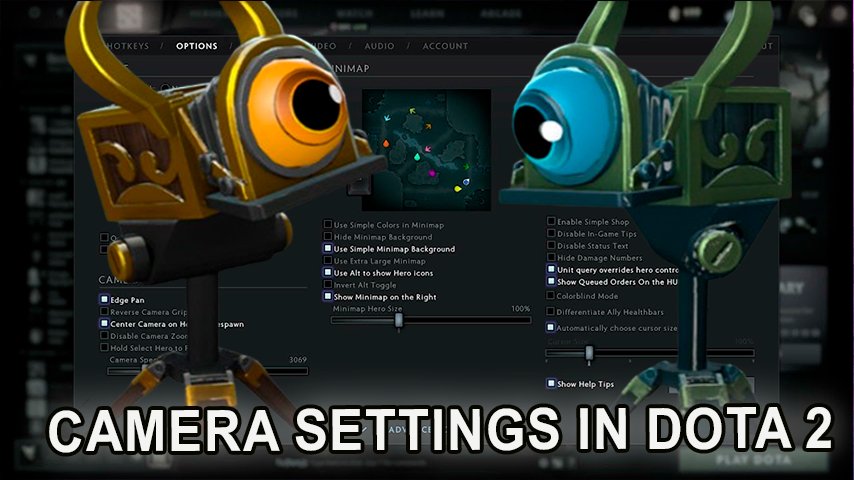
The esports community of Dota 2 is renowned for its dynamism and strategic depth. Every element of the game can significantly impact the outcome of a match, including camera settings. In this article, we'll explore key aspects of camera settings in Dota 2, such as camera speed and lock, as well as additional camera control features. Learn how to set up your camera to improve your gameplay and gain an edge in your matches.
How to Set Camera Speed in Dota 2
Camera speed in Dota 2 plays a crucial role in a player's ability to effectively control the battlefield. Adjusting the camera speed allows for faster map navigation, which is particularly useful during high-action moments.
How to Change Camera Speed in Dota 2
Open the game settings: Click on the gear icon in the top left corner of the main menu.
Go to the "Interface" section: In the settings menu, select the "Interface" tab.
Adjust the camera speed: Find the "Camera Speed" parameter and use the slider to increase or decrease the speed. It is recommended to start with a small adjustment and gradually increase it to a comfortable level.
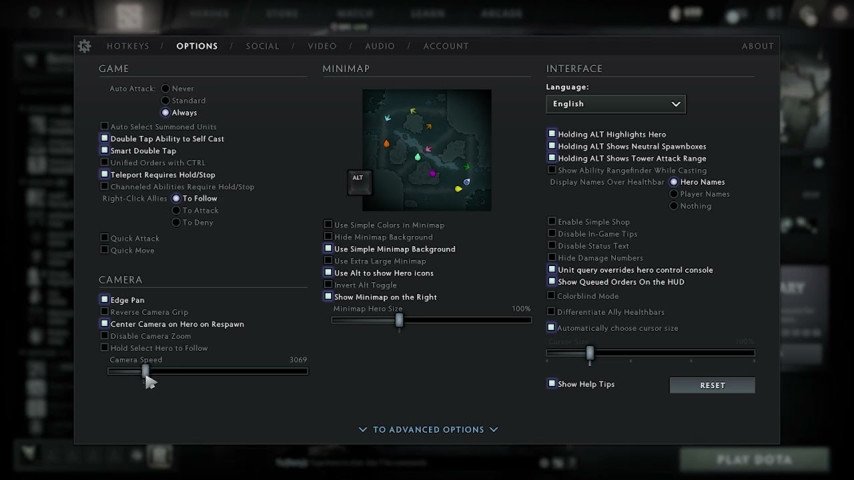 Credit: Game Rant
The optimal camera speed depends on personal preference. Some players prefer high speed for quick reactions to map events, while others prefer slower movement for precise control.
How to Enable Camera Lock in Dota 2?
Camera lock allows you to fix the camera on a specific object, such as your hero. This feature can be useful for new players who haven't yet mastered camera control or in situations where it's important to keep track of a particular hero.
Using the "F1" key: Press the "F1" key on your keyboard to lock the camera on your hero. Pressing "F1" again will unlock the camera.
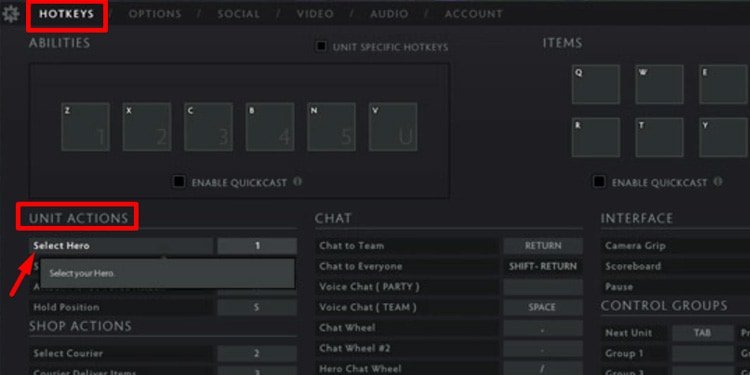
Camera settings: In the game settings, you can assign a different key for the camera lock function. To do this, go to the "Settings" section, then "Hotkeys," and find the "Camera Lock" parameter.
 Credit: GamingEsports
Pros and Cons of Camera Lock
Camera lock can be useful in certain situations, but it also has its drawbacks. For instance, a locked camera limits your map view, which can lead to missing important events. Therefore, many experienced players prefer free camera control for maximum awareness.
Additional Camera Control Features
Besides camera speed and lock, Dota 2 offers other important camera control features that can enhance your gameplay experience.
Camera on the Minimap
You can use the minimap for quick camera movements. Simply right-click on the minimap to instantly move the camera to the selected location. This is especially useful for quickly checking different parts of the map.
Hotkeys for Camera Control
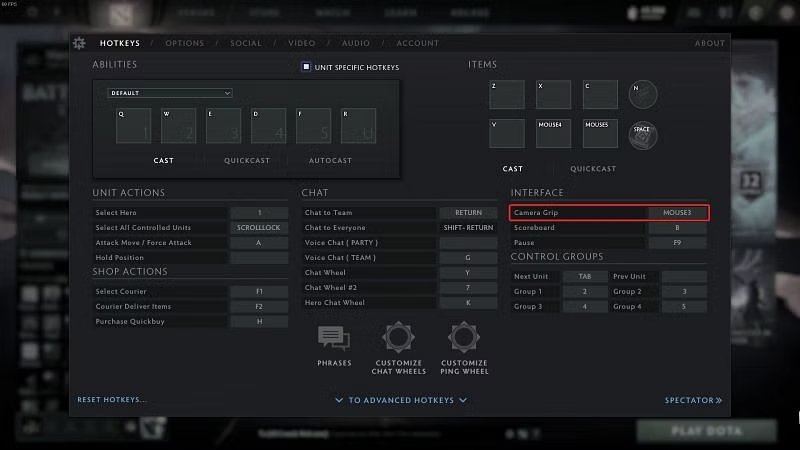
Assigning hotkeys for camera control can significantly improve your gaming experience. In the "Hotkeys" section, you can set keys for the following functions:
Center on hero: Quickly move the camera to your hero.
Switch to allied buildings: Quick access to key buildings and structures on the map.
Navigate to specific locations: Assign keys for quick transitions to specific points on the map, such as Roshan or key control points.
 Credit: Sportskeeda
Using the Mouse
You can also adjust the mouse sensitivity for camera control. The game settings include parameters for adjusting sensitivity when dragging the camera with the mouse. This allows for more precise camera movement.
Cinematic Camera Mode
Dota 2 offers a cinematic camera mode, which allows you to create more dynamic and visually appealing videos from your matches. This mode is available in replay mode and lets you set up viewing angles, effects, and camera speed to create impressive clips.
Camera Positioning for Streaming and Casting
For those involved in streaming or casting Dota 2 matches, camera positioning is crucial. Here are some tips:
Dynamic Shots: Use a combination of wide and close-up shots to capture the action and provide viewers with a comprehensive view of the battlefield.
Hero Focus: Highlight key heroes during pivotal moments, especially those with significant roles in team fights or game-changing plays.
Smooth Transitions: Avoid abrupt camera movements by planning transitions between different parts of the map. Smooth transitions enhance the viewing experience.
Conclusion
Camera settings in Dota 2, such as speed, lock, and other control features, can significantly impact gameplay. Optimal camera settings allow players to react faster to map changes and effectively control their hero. Understanding and correctly using these settings help improve gaming skills and increase the chances of victory.
So, if you want to enhance your gaming performance, don't forget to experiment with camera settings and find what works best for you.