How to Increase FPS in Deadlock: Top Optimization Tricks for Smooth Gameplay
Author: Hawk Live LLC
Last updated:
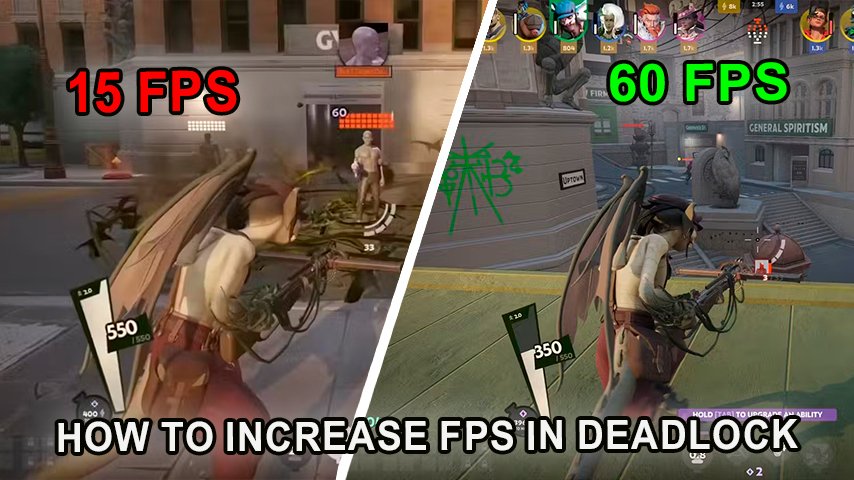
As more players join the closed beta test, Deadlock is steadily gaining traction. Players are not only drawn to the exciting battles but the clever strategy that is incorporated into the game. Those eager to partake in the game will experience lower FPS, performance drops as they engage in the game. Any veteran competitive player is aware that every single second and its milliseconds are critical. This guide details the effective methods that players can use to raise the FPS in the game allowing them to have a better overall experience with the game.
Why FPS Matters in Deadlock
FPS in a game stands for the frames per second and it is really important in providing fluidity during a single round. Many things are taken into consideration when talking about first person shooters such as aiming and responding, thus optimally a high fps is required. With this the game has plenty of disadvantages like lag, and frame drops for all the players using it which becomes a headache during critical moments. What’s worse is that all of this makes the player miss out on important moments, this is the reason adjusting your game settings and system optimization is important.
Common Causes of Low FPS in Deadlock
There are several factors that can lead to the frame drops that players are experiencing in the game, such as:
The Background Applications Orbital Collisions
The Usage of Old Generation Hardware
Rollback Graphics Settings
Thermal Throttling: It’s rather understandable for your CPU or GPU to experience overheating issues, which, in turn, leads to throttled down frequencies or decreased performance in simple terms.
Software Conflicts: Gamers often complain about poor performance of the game and the reasons could range from driver and software related issues to other unreported services that might be affecting the game during its run.
How to Increase FPS in Deadlock: Step-by-Step Optimization
Optimize Windows Settings for Gaming
Now, before we adjust in-game settings in Deadlock, a few changes need to be made on the windows support side first to improve the overall user experience:
Activate The Game Mode
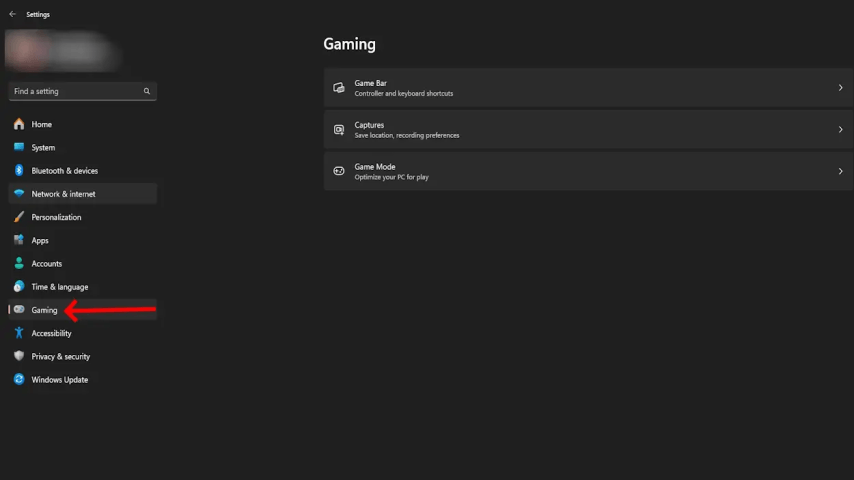
Windows 10 and 11 have an interesting ‘game mode’ for the users. Essentially, this is a mode which gives priority only to the game processes and thus, disables every other background process that could possible interfere with the game. To enable it, you need to open the Settings app, select Gaming, and finally turn on Game mode from the menu. This setting will allow Deadlock to run more smoothly owing to the increased resources allocated to the game.
 Credit: Microsoft Corporation
Enable GPU Scheduling
 Credit: Microsoft Corporation
In the same Gaming tab, switch on the toggles for Hardware-accelerated GPU scheduling. This feature cuts down latency and enhances the experience whilst gaming in heavy graphics games such as Deadlock.
Switch Off The Game Bar And Captures
During the gameplay, the game bar and captures features for windows consume a lot of resources without providing any value addition to the gameplay. Switching them off provides more processing space to Deadlock. Visit the Gaming tab and turn off the Allow Game Bar option and ensure all capture options are turned off.
Adjust Nvidia Settings for Deadlock
Nvidia graphics card users may improve their systems even further by modifying some settings:
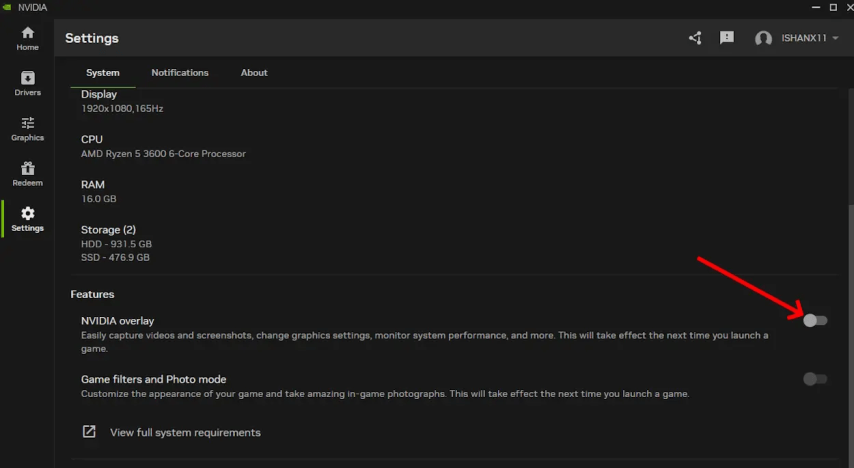
Turn Off Nvidia Overlay
 Credit: Nvidia
Nvidia overlay makes use of system resources which sometimes results in FPS drops. To turn off the overlay, use the Nvidia application and go to settings, then uncheck ‘the overlay’ option.
Adjust 3D Settings
To change any settings, open the Nvidia control panel, go to global settings as follows:
Low Latency Mode: turn on optional
Power Management Mode: normal definitely not adaptive/power saver
Shader Cache Size: 100GB depending on the amount of space available
Resolution and Refresh Rate: adjust according to your monitor settings
G-Sync: Only turn on if this is supported on your monitor
Optimize In-Game Settings in Deadlock
Now that the system is up and running let’s adjust the in-game deadlock settings;
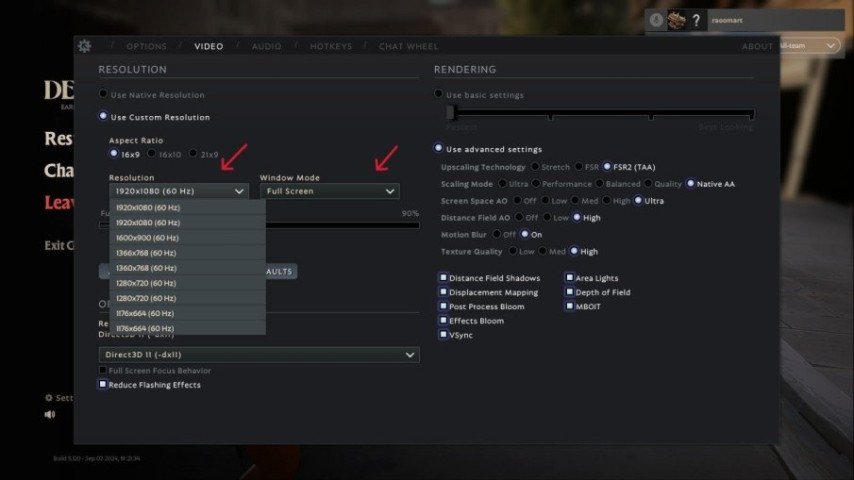
Full-Screen Mode
Always use the full screen application mode so that every system resource is dedicated to that application, especially for gaming. Full-screen mode always experiences less delay as compared to windowed or bordered options.
 Credit: Valve Corporation
Lower Resolution
If the FPS marks a significant decline then try selecting a lower resolution within the game. Yes, clarity is loss but this would be incredibly helpful in boosting the systems performance especially on lower-end builds.
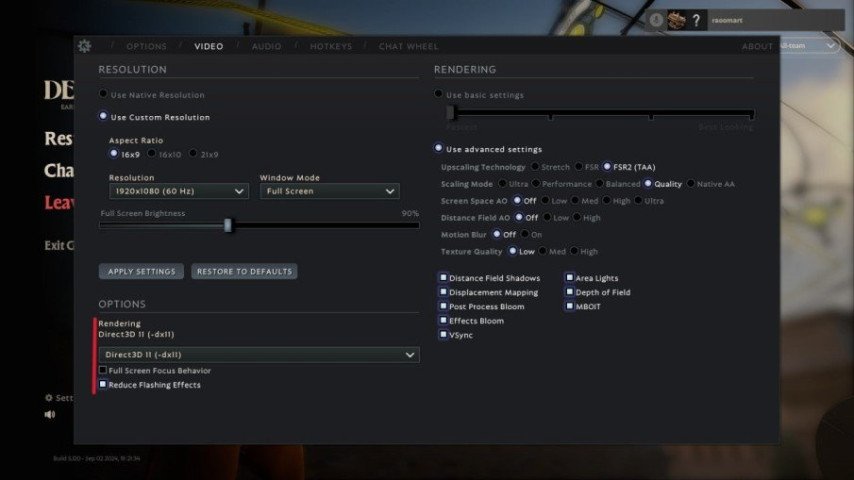
Graphics Settings
Make sure to tune the graphics settings for optimal efficiency:
Render Mode: Choose Direct3D 11, as it has the most stable performance across the majority of systems tested. Impressive frame rates can be achieved on some setups using Vulkan, however, DirectX 11 is more reliable when playing Deadlock.
Ambient Occlusion and Shadows: Deactivate Ambient Occlusion and set Shadow Quality to low as it is a big killer for FPS. Shadows are one of the biggest offenders in terms of resource consumption.
Post-Processing Effects: Turn off motion blur, bloom or depth of field as they provide no visible value. They add to the visual appeal but more often than not compromise on smoothness during gameplay.
 Credit: Valve Corporation
Use FidelityFX Super Resolution (FSR)
FSR 2.0 can be allowed if you want to optimize the visual quality and the performance together. FSR is useful in up scaling lower resolution images helping the user gain a competitive advantage.
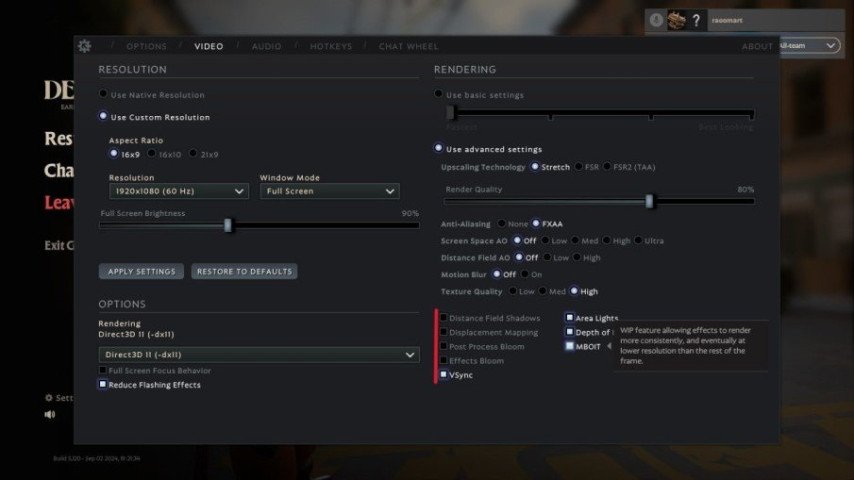
V-Sync
 Credit: Valve Corporation
Locking the vertical sync does help eliminate screen tears, but it does introduce some input lag. Turning it off might reduce the lag, but depending on your machine you may have to adjust which settings you want to apply.
Final Thoughts
Deadlock is still at a pre-pre alpha stage so it’s not surprising that low FPS performance issues are still common across the game , however, it is possible to enhance your experience by optimizing your machine, changing a few in-game settings as well as using tools such as LagoFast. It is important to remember that using such techniques will hinder the visual quality of the game but the benefit of this hindrance is the smoother and more responsive experience that one gets in a competitive atmosphere.
Now, hopefully those tips will help you enjoy playing Deadlock to it’s fullest without worrying about FPS drops ruining your precious matches.